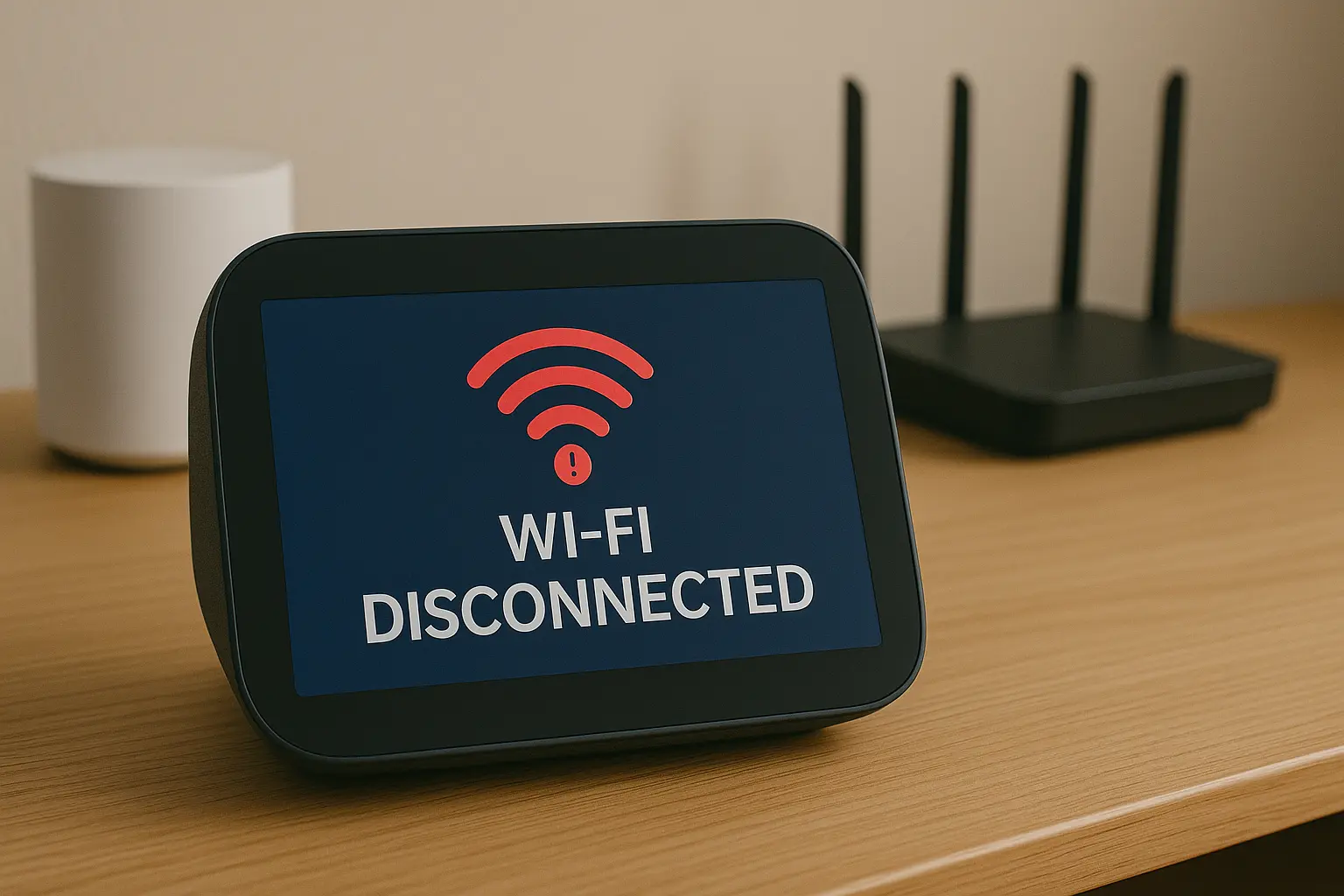
The single most common and frustrating problem my clients face isn’t a device failing completely, but one that is maddeningly unreliable. It’s the smart light that’s “unresponsive” in the app, the smart plug that’s always “offline,” or the security camera that randomly stops recording. The device isn’t broken, but its constant disconnections make it useless.
The immediate instinct for most people is to blame the smart device itself. While faulty hardware is sometimes the cause, in my experience, over 90% of these random disconnection issues are rooted in one place: your home Wi-Fi network.
Your Wi-Fi network is the invisible foundation of your smart home. If that foundation has cracks, your entire smart home will be unstable. In this guide, I will walk you through the five most common causes of these disconnections, drawing from my experience troubleshooting hundreds of homes. We’ll diagnose the problem like a pro and give you actionable steps to build a rock-solid network for your smart devices.
The 5 Core Reasons for Smart Device Disconnections
Let’s play detective. The issue almost always falls into one of these five categories.
1. Weak Wi-Fi Signal (The Distance Problem)
This is the number one culprit. Your phone or laptop might work fine in the far corner of your house, but the tiny, low-power Wi-Fi chip in a $15 smart plug doesn’t have the same strength. If a device is in a location with a weak or fluctuating signal, it will constantly struggle to maintain a connection.
How to Diagnose: Use a Wi-Fi analyzer app on your phone (like “WiFi Analyzer” for Android or “AirPort Utility” for iOS). Stand right where the problematic device is. If the signal strength is below -70 dBm, it’s likely too weak for reliable performance.
How to Fix:
- Move your router to a more central location in your home.
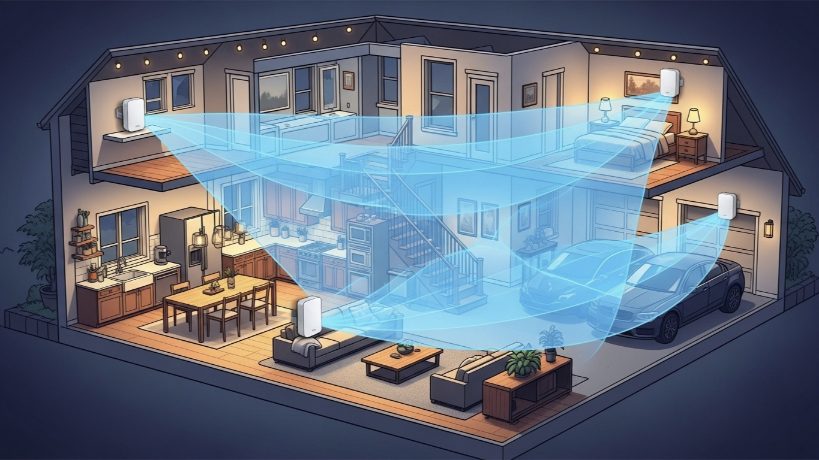
- The best solution: Install a mesh Wi-Fi system (like Eero, Google Nest Wifi, or Deco). A mesh system uses multiple nodes to blanket your entire home in a strong, consistent signal, eliminating dead zones. This is the single biggest upgrade you can make for smart home stability.
2. Network Congestion (The “Too Many Devices” Problem)
Most standard routers provided by internet service providers (ISPs) are not designed to handle the demands of a modern smart home. They can get overwhelmed when dozens of devices—phones, laptops, TVs, and 20+ smart plugs/lights—are all trying to “talk” at once. The router starts dropping connections to cope.
How to Diagnose: This is harder to measure directly, but a key symptom is that problems get worse in the evenings when everyone is home and using devices.
How to Fix:
- Upgrade to a quality router designed for high device counts, or better yet, a mesh system.
- Create a separate guest network just for your 2.4 GHz smart devices to reduce interference on your main network (more on this below).
3. 2.4 GHz vs. 5 GHz Band Steering Issues (The “Wrong Lane” Problem)
Modern routers broadcast two networks (bands): 2.4 GHz and 5 GHz. The 2.4 GHz band is slower but has a longer range, while 5 GHz is faster but has a shorter range. Nearly all smart devices are designed to work only on the 2.4 GHz band. Many modern routers try to be “smart” by combining these into a single Wi-Fi name and automatically “steering” devices to the “best” band. Sometimes, the router tries to force a 2.4 GHz-only smart plug onto the 5 GHz band, causing it to disconnect.
How to Diagnose: A key symptom is a device that works perfectly during setup near the router but starts disconnecting when moved further away.
How to Fix:
- Log in to your router’s settings and look for an option to split the bands. This will let you create two separate Wi-Fi names, like “MyHomeWiFi_2.4” and “MyHomeWiFi_5.” Connect all your smart devices exclusively to the 2.4 GHz network.
4. IP Address Conflicts (The “Identity Crisis” Problem)
Every device on your network needs a unique address, called an IP address, assigned by your router’s DHCP server. Sometimes, this system glitches and tries to assign the same address to two different devices, causing one or both to lose their connection. This often happens on older routers or after a power outage.
How to Diagnose: Problems often appear random and affect different devices at different times.
How to Fix:
- The simplest fix is to restart your entire network. Unplug your modem and your router. Wait 60 seconds. Plug in the modem first and wait for it to fully connect. Then, plug in your router. This forces the DHCP server to reassign all addresses cleanly.
5. Router Channel Interference (The “Noisy Neighbor” Problem)
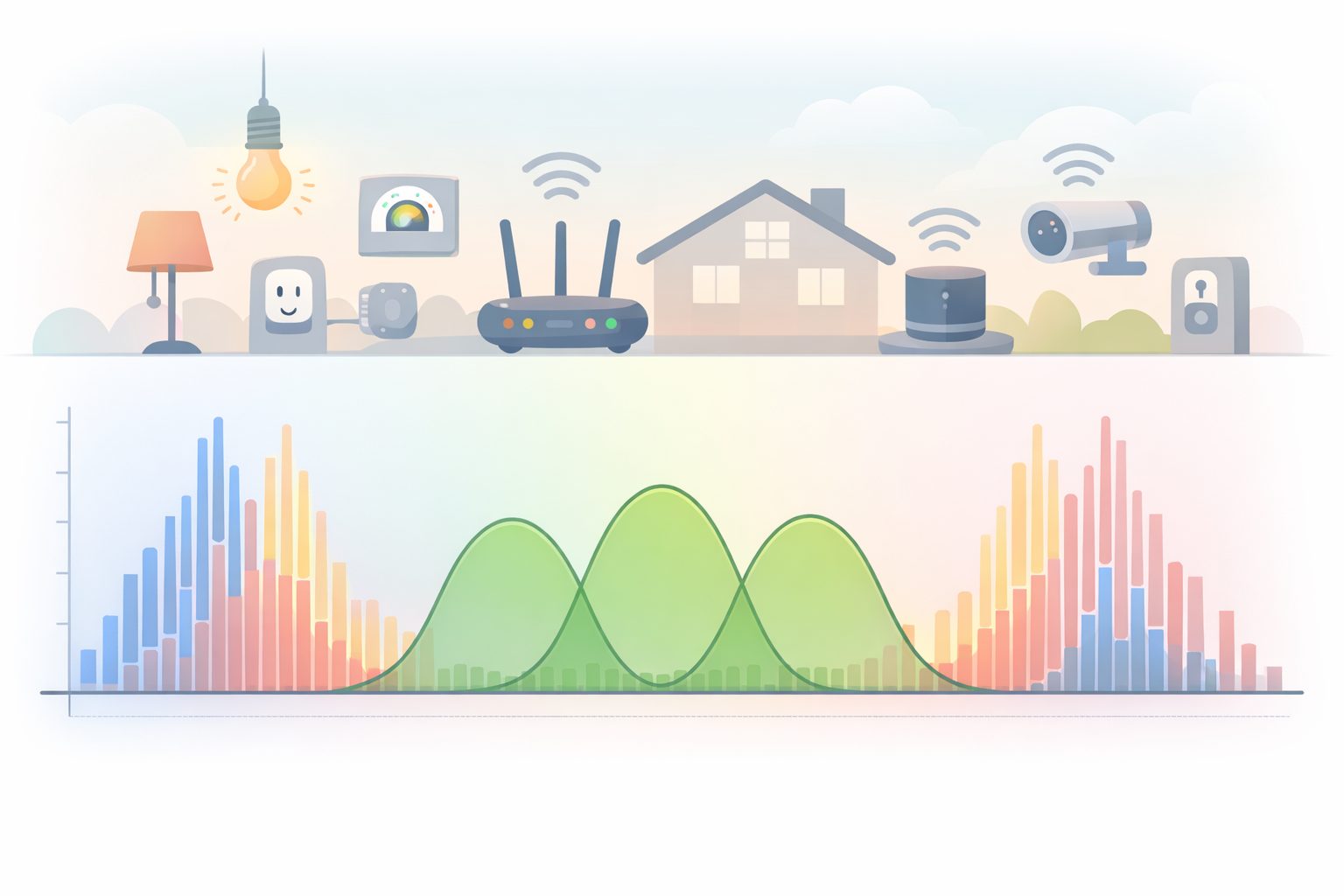
The 2.4 GHz band is divided into channels (1-11 in the US). If you live in an apartment or dense neighborhood, your neighbor’s Wi-Fi network might be using the same channel as yours, causing interference and signal degradation, just like two radio stations broadcasting over each other. Most routers are set to “Auto” channel selection, but sometimes they pick a crowded channel and stick to it.
How to Diagnose: A Wi-Fi analyzer app will show you which channels are the most congested in your area.
How to Fix:
- Log in to your router settings, find the 2.4 GHz Wi-Fi settings, and manually set the channel to one of the least crowded options (typically 1, 6, or 11, as these don’t overlap).
The Smart Garage That Refused to Be Smart
A client called me in frustration over their new smart garage door opener. It would work for a few hours, then show as “offline” in the app, forcing them to use the old keypad. They had already replaced the unit once, thinking it was faulty.
The Investigation: The garage was at the far end of their large home, a significant distance from their ISP-provided router in the office. I took out my phone, opened my Wi-Fi analyzer app, and stood right next to the garage door opener. The signal strength was -82 dBm—extremely weak and unstable. The device wasn’t faulty; it was starving for a signal.
The Solution: We didn’t need to change a single setting on the device itself. The solution was purely architectural.
- We installed a three-node Eero Pro mesh Wi-Fi system.
- We placed the main Eero node connected to the modem in the central living room.
- We placed a second Eero node in the hallway leading towards the garage.
- We placed the third node in the garage itself.
The Result: The signal strength at the garage door opener immediately jumped to a rock-solid -55 dBm. The disconnections stopped instantly and have never returned. This perfectly illustrates that the location and capability of your Wi-Fi hardware are often more important than the smart device itself.
My Final Verdict: Stop Blaming the Device, Start Improving the Foundation
It’s natural to get frustrated with a smart device that isn’t behaving smartly. But before you go through the hassle of returning it or climbing a ladder to reset it for the tenth time, take a step back and look at your network.
Work your way through the five core issues I’ve outlined. Start with a simple network restart, check your signal strength, and consider splitting your Wi-Fi bands. For a permanent, long-term solution in a home with more than a handful of smart devices, investing in a quality mesh Wi-Fi system is the single best decision you can make. By building a strong and stable foundation, you allow all of your smart devices to perform reliably, just as they were designed to.