If you’ve ever experienced Zigbee devices dropping offline, lights that respond slowly, or a smart home that seems to have a mind of its own, channel interference might be the culprit. Unlike Wi-Fi, which most people understand, Zigbee operates on the same 2.4 GHz frequency but with different channels and modulation. When other wireless devices crowd that spectrum, your Zigbee mesh network can become unreliable.
The good news? You can diagnose and fix this problem yourself with a simple tool: a Zigbee sniffer. That’s right — a device designed for Zigbee networks can also “see” Zigbee interference because both protocols share the 2.4 GHz band. In this guide, you’ll learn exactly how to scan for interference, identify the source, change your Zigbee channel, and verify that your network is stable again.
What is Zigbee Channel Interference?
Zigbee channels are like lanes on a highway. Your Zigbee devices communicate on specific channels (11–26 in most regions), each 2 MHz wide. When another wireless device uses the same frequency range, it creates noise that can drown out Zigbee signals.
How Zigbee Uses the 2.4 GHz Spectrum
Zigbee channels are centered at different frequencies:
- Channel 11: 2.405 GHz
- Channel 15: 2.415 GHz
- Channel 20: 2.420 GHz
- Channel 25: 2.435 GHz
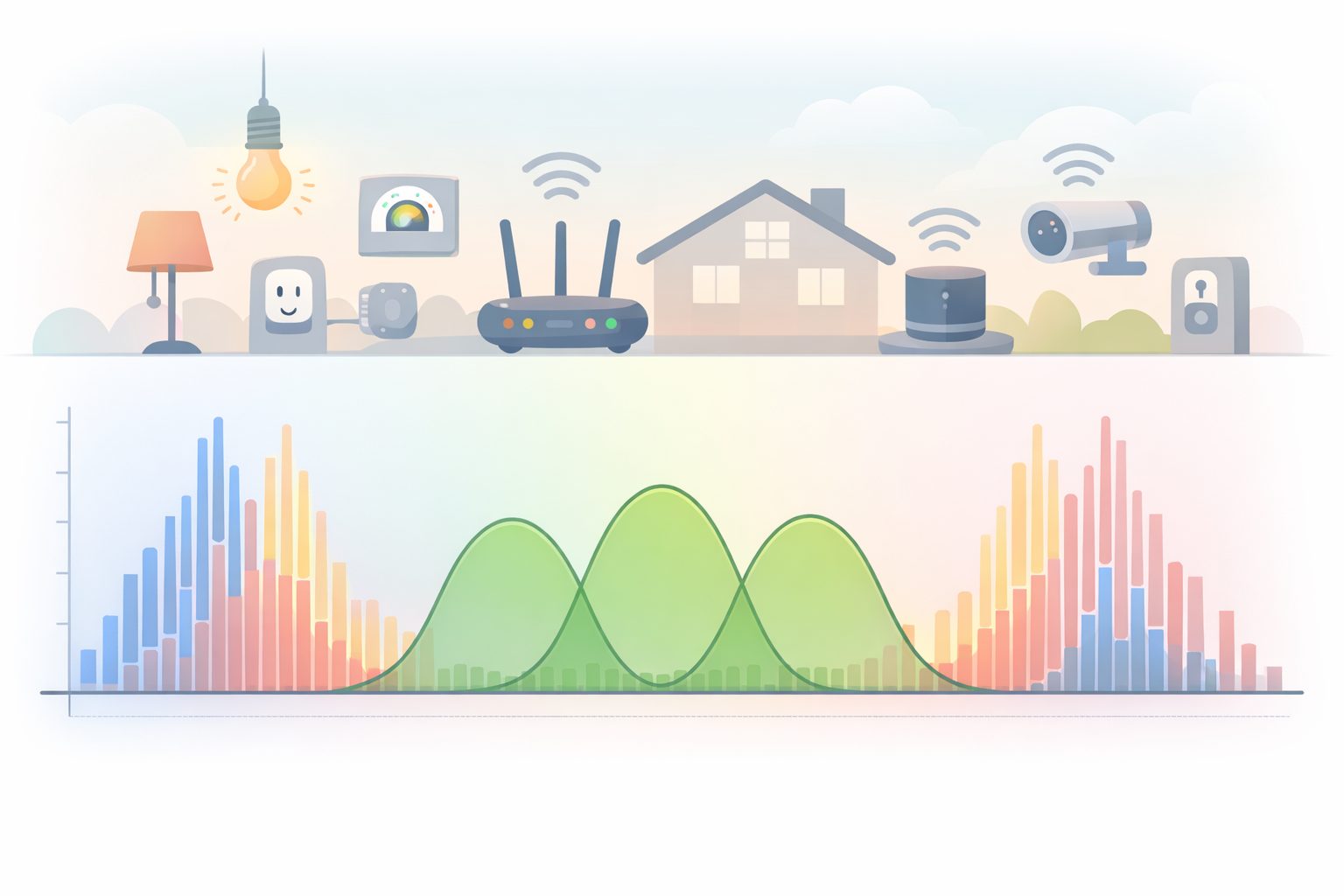
These channels overlap with Wi-Fi channels 1–11 (which also occupy the 2.4 GHz band). For example, Wi-Fi channel 1 overlaps with Zigbee channels 11–13; Wi-Fi channel 6 overlaps with Zigbee channels 16–18; Wi-Fi channel 11 overlaps with Zigbee channels 22–24.
Common Sources of Interference
Anything that emits radio energy in the 2.4 GHz range can cause interference:
- Wi-Fi routers — the most common source, especially if you have many devices or a crowded network
- Bluetooth devices — headsets, speakers, keyboards, mice
- Microwave ovens — when operating, they can flood the band with noise
- Cordless phones — many older models use 2.4 GHz
- Wireless cameras — baby monitors and security cameras
- USB 3.0 devices — hard drives and hubs can emit interference
- Other Zigbee networks — if your neighbors also use Zigbee devices
Why Some Channels Are More Affected
Channels 15, 20, and 25 tend to experience the most interference because they sit in the middle of the 2.4 GHz band where Wi-Fi activity is heaviest. Channel 11 (the lowest Zigbee channel) often performs best in Wi-Fi-dense environments.
How Many Devices Cause Problems?
There’s no hard threshold. A single active microwave can disrupt your network temporarily. Two or more strong Wi-Fi networks on overlapping channels can cause chronic issues. If you live in an apartment with many neighbors, you’re more likely to experience interference.
Symptoms of Zigbee Channel Interference
Before you start scanning, make sure the symptoms match. Here’s what interference typically looks like:
Devices Randomly Going Offline or Unresponsive
Your Zigbee bulbs or sensors show as “unavailable” in the app, then come back on their own. This often happens during peak Wi-Fi usage hours (evenings).
Commands Taking Seconds Instead of Milliseconds
When you tap a button to turn on a light, there’s a noticeable 2–5 second delay. Under normal conditions, Zigbee responses are near-instant.
Intermittent Connectivity Only During Certain Times
The network works fine during the day but becomes unreliable in the evenings when everyone is home using Wi-Fi for streaming and gaming.
New Devices Failing to Join the Network
You try to pair a new sensor or bulb, but the pairing times out repeatedly. Interference can prevent the initial handshake.
Mesh Routing Instability
Your devices keep changing parent routes in the mesh. You might see in your hub’s logs that a bulb that normally talks to one repeater suddenly talks to another, then back again. This indicates packets are being lost.
How to Diagnose Interference with a Zigbee sniffer
Now let’s get into the actual diagnosis. You might be wondering: why use a Zigbee sniffer for a Zigbee problem? Both Zigbee and Zigbee operate in the 2.4 GHz band (Zigbee in the US uses 908.42 MHz, but many Zigbee sniffers also support 2.4 GHz spectrum analysis). More importantly, a Zigbee sniffer often includes a generic spectrum analyzer that shows RF energy across frequencies — perfect for seeing interference.
Tools You Need
- Zigbee sniffer — devices like the Z-Stick, Aeotec Z-Stick, or any USB Zigbee adapter that can be put into “sniffer” or “spectrum analyzer” mode
- Zigbee coordinator — your existing Zigbee hub (e.g., Zigbee2MQTT, Home Assistant with ZHA, SmartThings, etc.)
- Computer or Raspberry Pi — to run the sniffer software
- Optional: Spectrum analyzer app — if your sniffer doesn’t have built-in visualization
Step 1: Capture Raw Zigbee Traffic
If you’re using Zigbee2MQTT, it already logs traffic. But for interference analysis, you need to see the RF environment. Put your Zigbee sniffer into spectrum analyzer mode. Many adapters use the same chipset (CC2531, CC2652) and can be switched with firmware:
- Flash the sniffer with a firmware that supports 2.4 GHz scanning (e.g., Z-Stack or OpenThread sniffer firmware).
- Place the sniffer near your Zigbee coordinator (within a few meters).
- Run the capture for 2–5 minutes to get a representative sample.
Step 2: Identify Channel Utilization
Look at the spectrum heatmap or data dump:
- High noise floor — if the baseline noise is above -85 dBm across the band, that’s a sign of interference.
- Sharp spikes — see if there are strong, narrowband signals on specific frequencies that correspond to Zigbee channels.
- Retransmission rates — in Zigbee2MQTT logs, check for high “failed” or “retry” counts. That indicates packets are being lost.
Step 3: Find the Source
If you see interference on Zigbee channel 15, for example, look around your environment:
- Is the Wi-Fi router set to channel 6? That’s a prime suspect.
- Are there active Bluetooth devices nearby?
- Is someone using a microwave?
- Do you have a USB 3.0 hard drive on a desk near the Zigbee coordinator? Move it.
Step 4: Confirm by Turning Off Suspects
The most definitive test: temporarily turn off your Wi-Fi router (or switch it to a different channel) and see if Zigbee performance improves instantly. If it does, you’ve found the cause.
Sniffer Alternatives
If you don’t have a Zigbee sniffer, you can still get useful data:
- Wi-Fi analyzer apps (for Android or iOS) can show Wi-Fi channel usage, helping you avoid overlap.
- Zigbee2MQTT’s built-in map shows device connections and can reveal unstable routing.
- Your hub’s logs often include LQI (link quality) and RSSI (signal strength) values per device — high variance suggests interference.
How to Change Your Zigbee Channel
Once you’ve identified interference, the fix is usually to change your Zigbee channel. The process depends on your hub.
Through Your Hub (General Steps)
- Open your hub’s admin interface (Home Assistant, SmartThings, Hubitat, etc.).
- Find the Zigbee radio settings (often under “Configuration” or “Zigbee” or “Radio”).
- Select a new channel — recommended: channel 11, 15, or 20. Avoid channels near your Wi-Fi channel. If your Wi-Fi is on channel 6, choose Zigbee channel 11 or 25 (farthest from Wi-Fi).
- Save the setting. The hub will restart the Zigbee radio. Devices may temporarily reconnect.
Important: Regional Channel Restrictions
In the United States, channels 11–26 are available. In Europe, channels 11–26 are available but with lower transmit power. Some regions restrict channels 15 and 20. Check your local regulations before selecting a channel.
Best Practice: Keep Zigbee and Wi-Fi Channels Separated
Avoid these combinations:
- Wi-Fi 1 → Zigbee 11–13
- Wi-Fi 6 → Zigbee 16–18
- Wi-Fi 11 → Zigbee 22–24
Good combinations:
- Wi-Fi 1 → Zigbee 20 or 25
- Wi-Fi 6 → Zigbee 11 or 25
- Wi-Fi 11 → Zigbee 11 or 15
Do You Need to Re-pair Devices?
No. Changing the Zigbee channel on the coordinator/hub does NOT require re-pairing devices. The devices stay paired; they simply communicate on the new channel automatically. This is a quick, non-disruptive change.
Preventing Future Interference
After fixing the immediate problem, take these steps to prevent recurrence:
Place Your Coordinator Away from the Router
Physical separation reduces the chance of the Zigbee coordinator’s signal being drowned out by the router’s powerful transmitter. Keep at least 1–2 meters between them.
Use a Dedicated Zigbee Channel (Don’t Rely on Auto)
Many hubs offer “auto” channel selection. In a crowded RF environment, auto can cause frequent switches. Manually set a channel and stick with it.
Add More Router/Repeater Devices
A stronger mesh with more mains-powered devices (plugs, bulbs) can overcome interference through redundancy. More routes = better resilience.
Keep Zigbee Devices Away from Interference Sources
Don’t place a Zigbee bulb inside a metal fixture near a Wi-Fi access point. Avoid putting Zigbee sensors next to USB 3.0 hubs or microwave ovens.
Consider a Zigbee Channel-Limited Hub
Some newer hubs (like certain Northern Ireland–made devices) have better RF filtering. If you’re in a very dense environment, investing in a high-quality coordinator can help.
Advanced: Using a Zigbee sniffer for Ongoing Monitoring
If you’re a power user, you can leave a Zigbee sniffer running 24/7 and log spectrum data. Tools like Packet Sniffer or Ubiquiti Wi-Finder can create long-term captures. Over time, you’ll see patterns — perhaps interference spikes every evening when your neighbor returns from work and turns on their Wi-Fi streaming.
FAQ
Can I use a regular Wi-Fi analyzer instead of a Zigbee sniffer?
Yes, but with limitations. A Wi-Fi analyzer shows only Wi-Fi networks, not other 2.4 GHz sources like Bluetooth, microwaves, or Zigbee itself. A Zigbee sniffer (or a general 2.4 GHz spectrum analyzer) gives you a complete picture of all RF energy in the band.
Does changing the Zigbee channel break my automations?
No. Automations stored in your hub remain intact. Devices stay paired. The only effect is that they start communicating on the new channel. You might see a brief “offline” period (a few seconds) as the network transitions.
What Zigbee channel should I avoid?
Avoid channels that overlap heavily with your Wi-Fi. Check your Wi-Fi channel using a Wi-Fi analyzer app, then pick a Zigbee channel at least 2 channels away. Also, in some regions, channels 15 and 20 have power limitations — check local rules.
How often does interference happen?
It depends on your environment. In a single-family home with few Wi-Fi networks, interference is rare. In apartments or offices with many networks, it can be daily. If you’re adding more Wi-Fi 6/6E devices, they still use 2.4 GHz for compatibility, so interference remains a concern.
Will a Zigbee sniffer work with my Zigbee network?
Yes, as long as the sniffer can operate in the 2.4 GHz band and you have the right firmware (Z-Stack sniffer, for example). The sniffer just listens; it doesn’t need to be paired with your Zigbee network.
Is Zigbee2MQTT the only way to change channels?
No. Most Zigbee hubs support channel changes: Home Assistant (ZHA or Zigbee2MQTT), SmartThings, Hubitat, Amazon Sidewalk bridge (limited), and others. Check your hub’s documentation.
Do I need to re-pair devices after changing the channel?
No, devices stay paired. The coordinator changes radio channels, and devices automatically follow.
Can I use channel 26 in Europe?
Europe generally allows channels 11–26, but channels 15 and 20 often have lower transmit power limits. Check your country’s specific regulations. Many European users stick to channels 11, 16, or 25 to stay within limits.
Internal Links to Relevant Articles
- Smart Device Keeps Disconnecting from Wi-Fi: 2025 Troubleshooting Guide
- Understanding Smart Home Protocols: Wi-Fi, Zigbee, and Zigbee Explained
- What is a Smart Home? A Simple Guide for Absolute Beginners
Conclusion
Zigbee channel interference is a common but fixable problem. With a Zigbee sniffer (or even a Wi-Fi analyzer), you can identify the source, change to a cleaner channel, and enjoy a responsive, reliable smart home. The key steps are: scan the spectrum, identify the noisy channel, switch your Zigbee channel away from Wi-Fi congestion, and verify improvement. Once set correctly, your Zigbee network can run for months without issues.
If you’re still experiencing problems after changing channels, consider adding more Zigbee repeater devices or upgrading to a coordinator with better RF performance. But in most cases, a simple channel change resolves the frustration of slow responses and dropped devices.
Have you dealt with Zigbee interference? What solution worked for you? Share your experience in the comments below.
References
For further reading on Zigbee technology and standards, consult these official sources: