If your Alexa routines aren’t working, the most common causes are incorrect triggers, unstable Wi-Fi, outdated apps, or smart device sync issues. In most cases, you can fix the problem by restarting your Echo device, checking routine settings, or reconnecting smart home integrations. Below are 9 proven fixes that solve the issue quickly.
You set up a routine. It worked yesterday. Today? Nothing. No lights. No automation. No response.
Frustrating—but very common.
Alexa routines rely on multiple moving parts: your internet connection, the Alexa app, cloud processing, and connected smart devices. If just one piece fails, the entire routine silently breaks.
I’ve seen this happen repeatedly—especially with multi-device setups using Philips Hue, Aqara sensors, or SmartThings hubs. The good news? Most issues aren’t serious. They’re just hidden.
Let’s start with the real reasons your Alexa routines stop working.
Why Are Alexa Routines Not Working? (Quick Answer)
Alexa routines usually stop working due to trigger errors, connectivity issues, or smart home device failures. Even a small mismatch—like the wrong time setting or a disconnected device—can prevent the routine from running.
- Incorrect trigger setup: Time, voice command, or location triggers may be misconfigured.
- Wi-Fi instability: Alexa relies on a constant internet connection to execute routines.
- Device offline issues: Smart lights, plugs, or sensors may not be responding.
- Outdated Alexa app: Bugs or version conflicts can break routines silently.
- Skill or integration errors: Third-party services like Philips Hue or SmartThings may disconnect.
- Time zone mismatch: A hidden but common cause of failed scheduled routines.
Here’s the tricky part—Alexa doesn’t always tell you something is wrong. The routine just… doesn’t run.
That’s why troubleshooting needs to be systematic. You’re not fixing one issue—you’re checking an entire chain of dependencies.
Next, let’s go step-by-step through fixes that actually work.
9 Proven Fixes for Alexa Routines Not Working
If your Alexa routine isn’t triggering, don’t guess—work through these fixes in order. Most users solve the issue within the first 3 steps.
1. Check Your Routine Trigger
Start here. Open the Alexa app and review the trigger settings.
- Is the time correct (AM/PM mistakes are common)?
- Is the voice command spelled exactly as you say it?
- Is the location trigger enabled properly?
A small mismatch can stop the routine completely.
2. Restart Your Echo Device
This clears temporary glitches. Unplug your Echo device, wait 30 seconds, then plug it back in.
It sounds basic—but it fixes a surprising number of routine failures.
3. Check Your Wi-Fi Connection
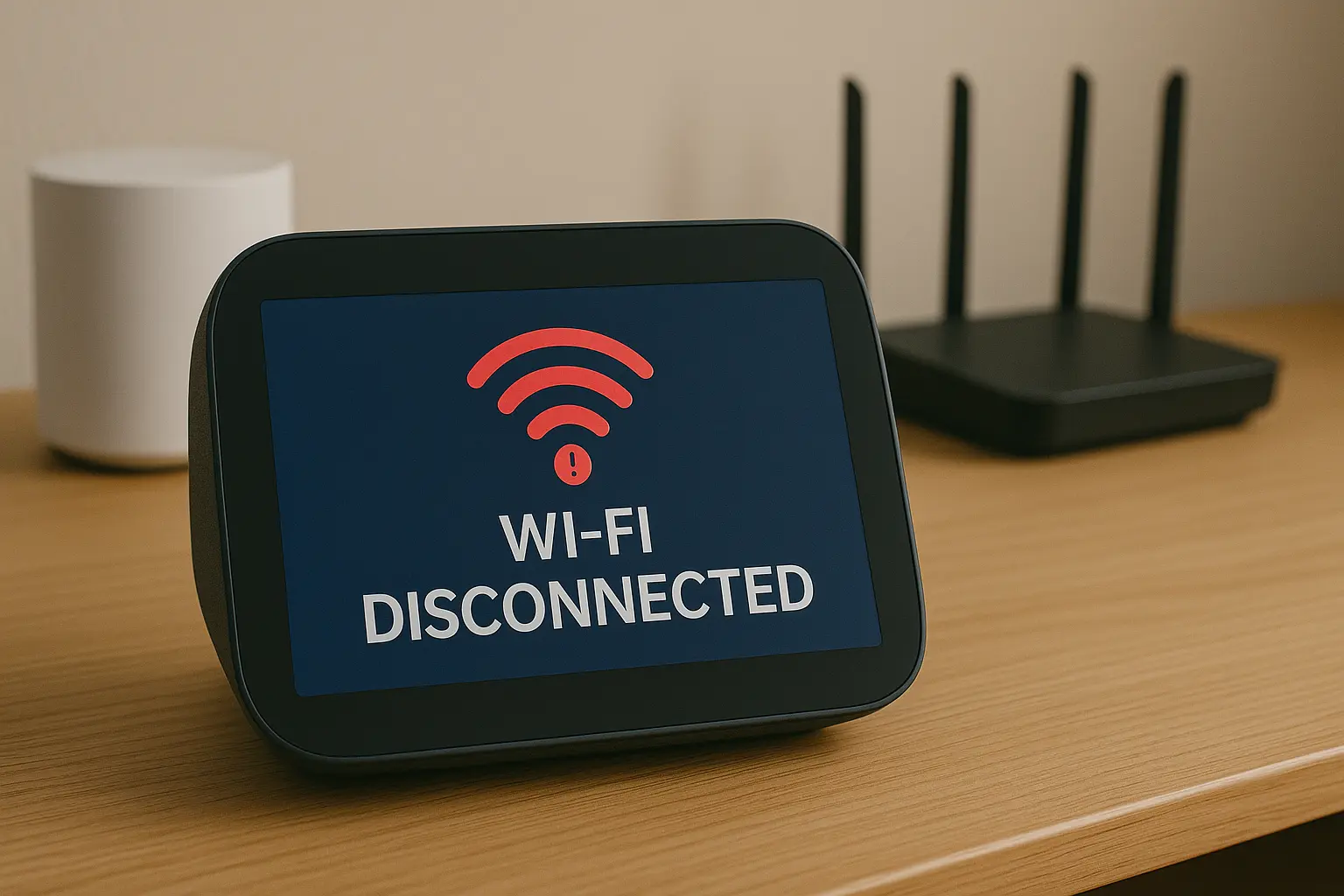
Alexa routines depend on a stable internet connection.
- Make sure your Echo device is online
- Restart your router if needed
- Avoid weak signal zones
If your Wi-Fi drops—even briefly—routines can fail silently.
4. Update the Alexa App
An outdated app can cause routines to stop syncing properly.
Go to your app store and install the latest version of the Alexa app. Then reopen it and test your routine again.
5. Re-save or Recreate the Routine
This is one of the most effective fixes.
Open the routine, make a small change (like adding a delay), then save it again. If that doesn’t work, delete and recreate the routine from scratch.
This clears hidden bugs in the system.
6. Check Smart Home Device Status
If your routine controls devices (lights, plugs, sensors), make sure they’re online.
- Open “Devices” in the Alexa app
- Check for “Device is unresponsive” messages
- Reconnect or power cycle the device
7. Disable and Re-enable Skills
Third-party integrations can break over time.
Disable the skill (like Philips Hue or SmartThings), then enable it again and re-link your account.
This refreshes the connection.
8. Check Time Zone and Location Settings
If your routine runs at a specific time, this is critical.
Go to your Alexa app settings and confirm your time zone and address are correct.
Even a small mismatch can prevent scheduled routines from running.
9. Reset Alexa (Last Resort)
If nothing else works, reset your Echo device.
- Go to device settings in the Alexa app
- Select your device
- Choose “Factory Reset”
This should only be used if all other fixes fail.
Once you’ve gone through these steps, your routine should be working again. If it still isn’t, the issue is usually deeper—let’s break that down next.
Why Alexa Routines Fail Randomly (Deep Explanation)
Sometimes Alexa routines don’t just stop—they fail inconsistently. One day everything works. The next day, nothing triggers.
This isn’t random. It’s how Alexa’s system is designed.
1. Cloud Dependency Delays
Alexa routines don’t run locally. They rely on Amazon’s cloud servers to process triggers and actions.
If there’s even a slight delay—server lag, API timeout, or network interruption—your routine may not execute at all.
This is especially noticeable during peak hours or when multiple smart devices are involved.
2. Multiple Routine Conflicts
If you have several routines running at similar times, they can interfere with each other.
- Two routines triggering the same device
- Conflicting commands (turn on vs turn off)
- Overlapping schedules
Alexa doesn’t always prioritize correctly—so one routine can silently override another.
3. Smart Device Response Lag
Not all smart devices respond at the same speed.
For example, when I tested routines with motion sensors and smart lights, I noticed a delay of 2–5 seconds between trigger and action. Sometimes, the routine failed entirely because the sensor response came too late.
This is common with:
- Motion sensors (like Aqara)
- Cloud-based lighting systems
- Older smart plugs
4. Silent App Sync Issues
The Alexa app doesn’t always sync instantly with your devices or routines.
You might update a routine—but the change isn’t fully applied in the system.
That’s why re-saving or recreating routines often fixes “random” failures. It forces a full sync.
5. Background Updates and Bugs
Amazon frequently updates Alexa in the background. Occasionally, these updates introduce temporary bugs.
You won’t get a notification. Your routines just stop behaving normally.
This is why routine issues sometimes resolve themselves after a day—or after restarting your device.
Understanding these hidden factors makes troubleshooting much easier. Instead of guessing, you can pinpoint exactly where the failure is happening.
How to Prevent Alexa Routine Issues (Pro Tips)
Fixing Alexa routines is one thing. Preventing them from breaking again? That’s where most smart home setups fail.
Here’s what actually works long-term.
1. Use Clear, Simple Routine Names
Avoid vague names like “Morning” or “Lights.”
Instead, use specific names like:
- “Bedroom Lights On – 7AM”
- “Leave Home Routine”
This reduces confusion—especially when using voice triggers.
2. Avoid Overlapping Triggers
One of the biggest hidden problems is trigger conflict.
If multiple routines activate at the same time or use the same device, Alexa may fail to execute them properly.
Fix: Space routines out by a few seconds or minutes.
3. Limit Device Dependencies
The more devices a routine depends on, the higher the chance something breaks.
Instead of building one complex routine, split it into smaller ones.
This makes troubleshooting easier—and improves reliability.
4. Test New Routines Immediately
Don’t assume a routine works just because you saved it.
Always test it:
- Trigger it manually
- Use the voice command
- Wait for scheduled execution
This helps catch issues before they become daily frustrations.
5. Keep Your Smart Home Ecosystem Consistent
Mixing too many brands can cause delays and compatibility issues.
For example, combining multiple hubs, cloud services, and sensors often leads to inconsistent routine behavior.
Whenever possible, keep your setup within a few reliable ecosystems.
6. Regularly Check Device Status
Devices can go offline without warning.
Make it a habit to check your Alexa app for:
- Unresponsive devices
- Disconnected skills
- Firmware updates
Small maintenance prevents major issues later.
These habits don’t just fix problems—they eliminate them before they start.
Alexa Routine Not Working With Smart Devices (Fixes)
If your Alexa routine fails only when controlling smart devices, the issue is usually not Alexa itself—it’s the connection between Alexa and those devices.
This is where most setups break.
Philips Hue Not Responding
Philips Hue is reliable, but it depends on a bridge and cloud sync.
- Make sure the Hue Bridge is online
- Open the Hue app and check if lights respond there
- If not, restart the bridge and router
If Hue works in its own app but not in Alexa, re-link the Hue skill inside the Alexa app.
Aqara Sensors Not Triggering Routines
Aqara motion and door sensors are known for delays—especially when used through hubs.
Common issues include:
- Slow response time (2–5 seconds delay)
- Missed triggers due to weak signal
- Battery-related instability
Try moving the sensor closer to the hub or replacing the battery. Also, avoid stacking too many actions on a single motion trigger.
SmartThings Hub Confusion
If you’re using SmartThings, things can get complicated quickly.
Why?
- Devices sync through the SmartThings cloud first
- Then pass through Alexa
- Any delay or sync issue breaks the routine
Fix:
- Check device status inside the SmartThings app
- Re-sync devices with Alexa
- Avoid mixing too many hubs in one routine
General Rule for Smart Device Reliability
The more layers between Alexa and your device, the higher the failure risk.
Direct integrations are always more reliable than hub-based setups.
If your routine works sometimes—but not always—this is usually the reason.
When to Reset vs When to Troubleshoot
Not every Alexa issue needs a full reset. In fact, resetting too early can waste time—and force you to rebuild everything from scratch.
Here’s a simple way to decide what to do.
When You Should Troubleshoot First
In most cases, the problem is small and fixable.
- The routine worked before but suddenly stopped
- Only one routine is failing
- Some devices respond, others don’t
- You recently changed a setting or added a device
These are usually caused by sync issues, triggers, or device connectivity problems—not system failure.
Start with the fixes we covered earlier. You’ll solve the issue faster without disrupting your setup.
When You Should Reset Alexa
Resetting should be your last option—but sometimes it’s necessary.
- Multiple routines are failing at once
- Your Echo device is unresponsive or glitching
- Devices won’t reconnect after multiple attempts
- The Alexa app behaves inconsistently or crashes
A factory reset clears everything—cached errors, hidden bugs, and broken connections.
But it comes at a cost.
What Happens After a Reset?
- All routines are deleted
- Smart home devices must be reconnected
- Skills need to be re-enabled
If your setup is complex, this can take time.
That’s why the best approach is simple:
Troubleshoot first. Reset only if nothing works.
Frequently Asked Questions
Why did my Alexa routine stop working suddenly?
Alexa routines often stop working due to connectivity issues, app bugs, or device sync problems. Even small changes—like a Wi-Fi drop or a disconnected smart device—can break the routine without any warning.
How do I reset Alexa routines?
You can’t reset routines individually, but you can delete and recreate them inside the Alexa app. If needed, performing a factory reset on your Echo device will remove all routines and allow you to start fresh.
Why is Alexa not triggering routines?
This usually happens بسبب incorrect triggers, time settings, or device conflicts. Check if the trigger conditions are set correctly and ensure all connected devices are online and responsive.
Do Alexa routines need Wi-Fi?
Yes. Alexa routines rely on cloud processing, so a stable internet connection is required. Without Wi-Fi, most routines will not trigger or execute properly.
How long do Alexa routines take to trigger?
Most routines trigger within 1–3 seconds. However, delays can occur depending on device response time, network speed, or cloud processing load.