Why Smart Devices Disconnect from Wi-Fi
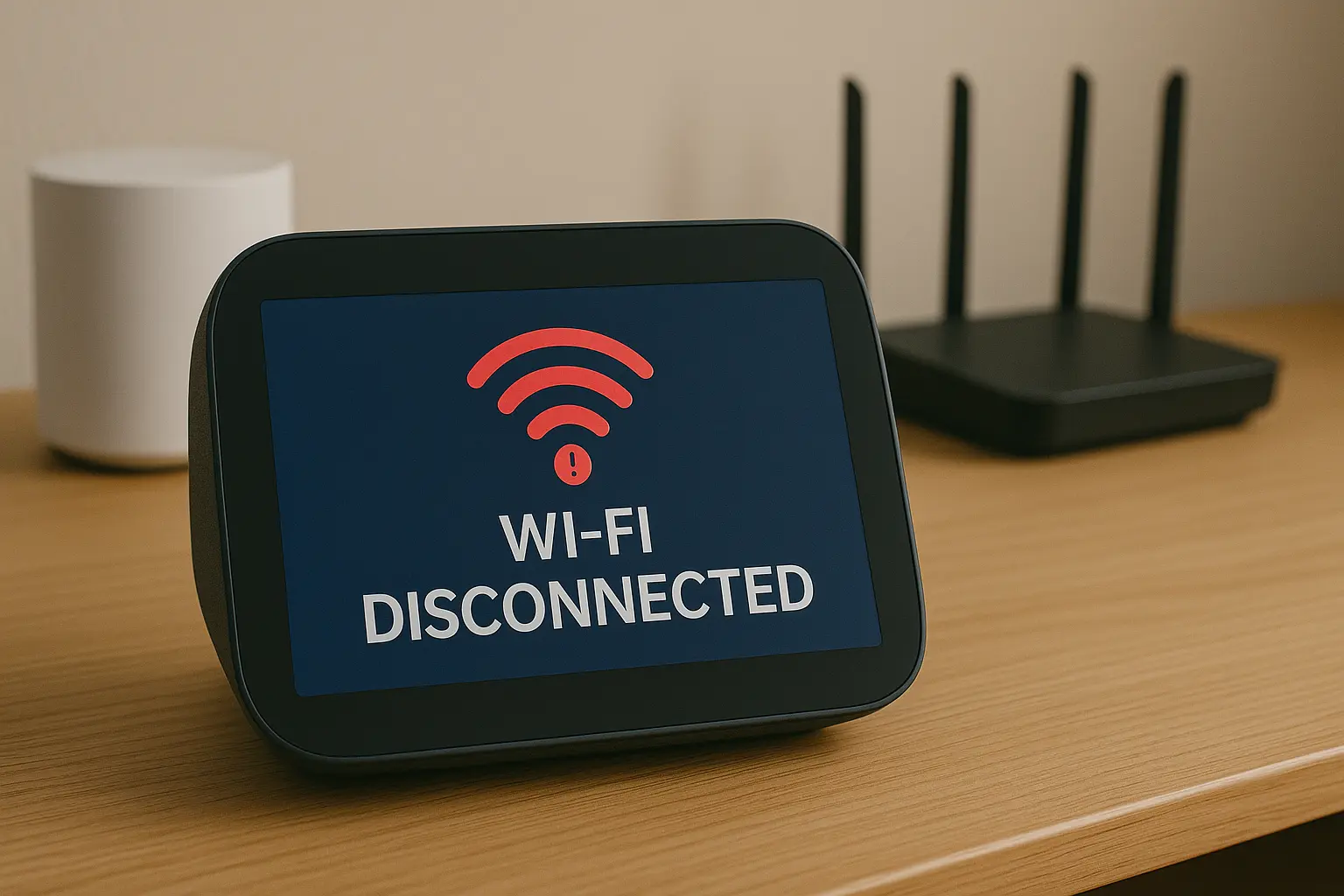
Smart home products rely on consistent low-bandwidth Wi-Fi connections. When they drop offline, the usual causes include:
- Weak signal or poor access point placement
- Network congestion or interference from nearby devices
- Incorrect router settings such as band steering or AP isolation
- Smart device firmware bugs or outdated software
- Power-saving cycles that disable Wi-Fi temporarily
- Matter and Thread network conflicts (2024–2025 common issue)
2.4 GHz vs 5 GHz Wi-Fi Problems
Most budget smart home devices still depend on 2.4 GHz networks. If your router merges both bands under one network name, the device may try connecting to 5 GHz temporarily and fail.
Symptoms of 2.4 GHz issues
- Device only disconnects when far from the router
- Setup fails repeatedly during pairing
- Device works one day, disconnects the next
A solution is to temporarily separate SSIDs or disable band steering during setup.
Router and Mesh Network Settings That Break Smart Devices
Modern routers and mesh systems have advanced features that may unintentionally break smart home connections.
1. AP Isolation (Client Isolation)
Prevents devices from communicating with each other. Smart lights and hubs will appear offline.
2. DHCP address changes
Devices may drop offline when assigned a new IP address.
3. Roaming aggressiveness
Mesh networks may push devices to switch nodes too often, causing dropouts.
4. Channel congestion
Overlapping channels from multiple routers can break 2.4 GHz reliability.
Reference: Google Nest Wi-Fi Support
Smart Device Hardware and Firmware Issues
1. Overheating
Smart plugs or hubs may disconnect when internal temperature rises.
2. Firmware bugs
Outdated firmware often causes random disconnects, especially in older devices updated for Matter support.
3. Low voltage or unstable power
Cheap adapters or loose wiring can drop Wi-Fi intermittently.
4. Device limit reached
Some routers slow down or disconnect smart devices when overloaded.
How to Fix Smart Devices Disconnecting from Wi-Fi
1. Restart the router and smart device
A clean reboot resolves temporary connection failures.
2. Move the device closer to the router
Signal quality is the most important factor for smart home stability.
3. Assign a static IP address
Prevents address changes that break communication between apps and devices.
4. Disable AP isolation and optimize mesh configuration
Ensure devices stay connected to the closest node.
5. Update firmware
Manufacturers frequently patch Wi-Fi stability issues.
6. Reset the device and re-pair it
Removes corrupted configuration files that cause repeated disconnects.
Related article: How to Fix “Device Is Unresponsive” in Google Home
Frequently Asked Questions
Why does my smart device disconnect at night?
Routers often run automatic channel optimization or reboot schedules that temporarily drop devices.
Do mesh systems cause more disconnections?
Sometimes yes. They may force devices to roam too frequently or switch bands unexpectedly.
Are 2.4 GHz-only smart devices outdated?
No, but they require proper router configuration for stable performance.