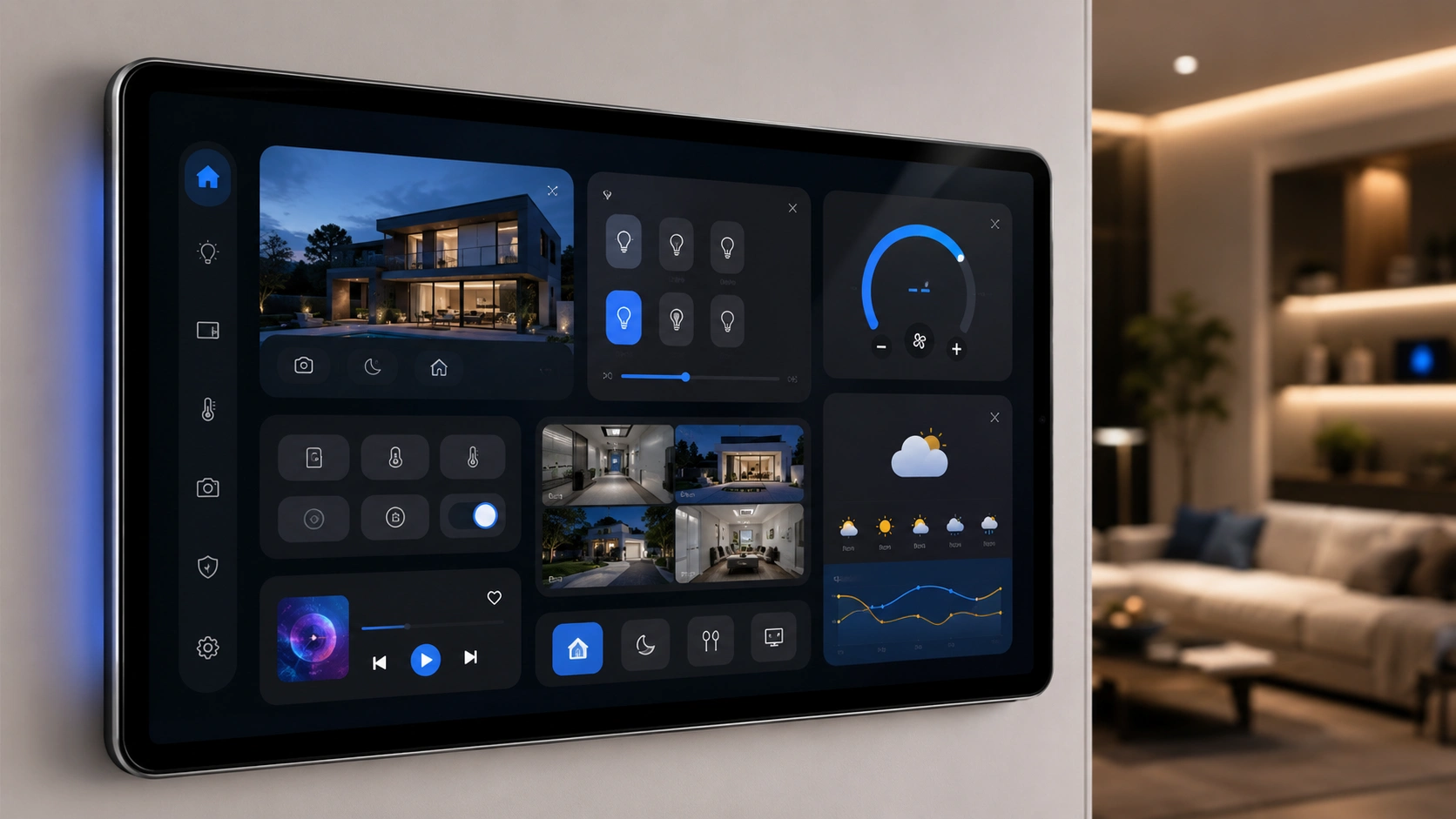
If you already use best Home Assistant add-ons, the right custom integrations, dashboard cards, and interface tweaks can completely transform your smart home—from ugly dashboards and clunky automations to something polished, fast, and genuinely enjoyable to use.
Home Assistant is incredibly powerful.
But let’s be honest.
Out of the box?
It’s not always beautiful.
And sometimes not especially user-friendly.
The default experience often feels more functional than delightful.
That’s where the right add-ons change everything.
The best Home Assistant upgrades can help you:
- build cleaner dashboards
- create easier automations
- control media more naturally
- visualize smart home data better
- make family dashboards more useful
- dramatically improve usability
Some upgrades are pure quality-of-life improvements.
Others feel transformational.
This guide focuses on the ones that genuinely improve day-to-day smart home life.
—
Who This Article Is For
This guide is especially useful if you are:
- new to Home Assistant customization
- trying to make your dashboard look better
- building a wall-mounted tablet dashboard
- managing a family smart home
- an automation enthusiast who wants cleaner workflows
- a Home Assistant power user looking for hidden gems
Whether you want aesthetics, productivity, or deeper automation functionality, there’s something here worth installing.
—
Before You Install Anything (Important)
Quick reality check.
Home Assistant customization is fun.
But it’s easy to break things, slow things down, or accidentally create troubleshooting headaches.
A few smart precautions first.
—
1. Backup Your Home Assistant Instance
Before installing custom components, themes, or dashboard mods:
create a full backup.
This saves pain later.
Especially when experimenting with CSS modifications, custom cards, or third-party integrations.
—
2. HACS Will Be Essential
Many of the best Home Assistant community tools are installed through HACS (Home Assistant Community Store).
If you haven’t installed HACS yet, that should be one of your first upgrades.
It dramatically simplifies community integration management.
—
3. Performance Matters
Not every visual enhancement is lightweight.
Some themes, cards, and heavy dashboards can impact:
- tablet responsiveness
- dashboard load speed
- rendering smoothness
- browser stability
This matters especially for older tablets or always-on wall panels.
—
4. Database Growth Can Sneak Up on You
Some integrations generate lots of rapidly changing data.
If not configured carefully, your recorder database can balloon unnecessarily.
That creates:
- storage bloat
- slower performance
- larger backups
We’ll point out risky integrations where relevant.
—
5. Beginner vs Power User Reality
Not every recommendation has the same complexity.
So throughout this guide, we’ll call out:
- Beginner
- Intermediate
- Advanced
That helps you avoid diving into projects you don’t actually want.
—
What We’re Covering
To make this easier to navigate, we’ll group recommendations into categories:
- dashboard visual upgrades
- automation productivity tools
- smart integrations & data widgets
- media control upgrades
- must-have utility cards
Let’s start with one of the easiest ways to make Home Assistant look dramatically better.
Dashboard Visual Upgrades That Make Home Assistant Feel Premium
Let’s start with the most visible improvements.
Because usability matters.
But aesthetics matter too.
If your dashboard looks cluttered, dated, or overly technical, family adoption drops fast.
These upgrades make Home Assistant feel dramatically more polished.
—
1. Frosted Glass Theme
Best for: beautiful dashboards, wall tablets, premium smart home aesthetics
Difficulty: Beginner
If you want the fastest visual transformation possible, start here.
The Frosted Glass Theme gives Home Assistant a sleek modern interface inspired by glass-like UI design.
Think:
- translucent panels
- reflective interface layers
- modern premium styling
- clean dashboard aesthetics
The effect can make Home Assistant feel dramatically more polished.
—
Customization Features
It also includes a theme manager for personalization:
- background image swapping
- accent color changes
- theme refinements
That makes it much easier than manually tweaking CSS everywhere.
—
Performance Tip
Use the light version if possible.
Why?
Heavy rendering effects can slow dashboards on older tablets.
The lighter version generally:
- loads faster
- reduces rendering issues
- improves popup reliability
Especially useful on iPads and always-on dashboard devices.
—
2. Bubble Card
Best for: decluttering dashboards, cleaner UX, mobile dashboards
Difficulty: Beginner
This is one of the most practical dashboard upgrades.
Because clutter kills usability.
The Bubble Card lets you hide larger dashboard elements behind elegant popups.
Examples:
- music controls
- flight trackers
- weather widgets
- advanced device controls
Tap button → popup appears instantly.
Tap outside → disappears.
Simple.
Fast.
Excellent UX.
—
Why It Matters
Without popup systems, dashboards become giant walls of controls nobody enjoys using.
Bubble Card fixes that beautifully.
—
3. Mushroom Cards
Best for: cleaner dashboards, better controls, modern card layouts
Difficulty: Beginner
Mushroom Cards are practically mandatory for many Home Assistant users.
Why?
Because default cards can feel limiting.
Mushroom adds much cleaner modern UI components with extra flexibility.
Useful features include:
- clean entity layouts
- dropdown selectors
- better compact controls
- modern visual consistency
Massive dashboard quality-of-life improvement.
—
4. Card Mod
Best for: advanced dashboard customization
Difficulty: Intermediate
If Mushroom improves dashboards, Card Mod unlocks serious customization.
This lets you directly modify card styling using CSS.
Meaning you can control:
- sizes
- colors
- spacing
- borders
- layout tweaks
- custom styling behavior
This is incredibly powerful.
But easy to overdo.
—
Reality Check
If you dislike CSS, skip this for now.
Power users love it.
Beginners may find it frustrating.
—
5. Kiosk Mode
Best for: wall dashboards, family tablets, ultra-clean interfaces
Difficulty: Beginner
This one feels small—but dramatically improves dashboard presentation.
Kiosk Mode removes distracting UI chrome like:
- top header bars
- navigation elements
- sidebars
The result?
A dashboard that feels purpose-built instead of browser-based.
—
Fully Kiosk Browser Tip
If using Fully Kiosk Browser, simply append:
?kiosk
to your dashboard URL.
Instant cleaner interface.
—
Quick Dashboard Upgrade Comparison
| Tool | Best For | Difficulty |
|---|---|---|
| Frosted Glass Theme | visual transformation | Beginner |
| Bubble Card | dashboard decluttering | Beginner |
| Mushroom Cards | modern UI controls | Beginner |
| Card Mod | deep customization | Intermediate |
| Kiosk Mode | tablet dashboards | Beginner |
—
Bottom Line
If your Home Assistant dashboard feels cluttered, outdated, or hard to use, these five upgrades will deliver the biggest immediate visual improvement.
Next, let’s make automations dramatically easier and smarter.
Automation Upgrades That Make Home Assistant Smarter (Without Extra Headaches)
Home Assistant automation is incredibly powerful.
But power doesn’t always equal convenience.
Complex automations can quickly become messy.
Hard to visualize.
Harder to debug.
And annoying to modify later.
These tools dramatically improve that experience.
—
6. Visual Flow Editor for Automations
Best for: easier automation building, visual thinkers, replacing automation spaghetti
Difficulty: Beginner to Intermediate
This solves one of Home Assistant’s most annoying workflow problems.
Automation complexity.
If you’ve ever opened a complicated automation and immediately regretted it… this is for you.
—
What It Does
Instead of mentally parsing complicated automation logic, the Visual Flow Editor gives you a drag-and-connect style workflow interface.
Think visual automation logic instead of raw structural complexity.
You can:
- see automation flow clearly
- drag connections visually
- add conditions faster
- modify logic more intuitively
This feels dramatically easier for many users.
—
Why This Matters
Many users previously relied on external systems like:
- Node-RED
- Homey
just to get better visual automation workflows.
This narrows that usability gap inside Home Assistant itself.
—
Reality Check
Power users comfortable with YAML may care less.
Everyone else will probably love this.
—
7. Chime TTS
Best for: voice announcements, family homes, better smart speaker UX
Difficulty: Beginner
This is a deceptively small upgrade that makes a huge difference.
Without it, smart home announcements can feel abrupt.
Jarring.
Sometimes borderline rude.
Imagine your house randomly yelling:
“THE GARAGE DOOR IS OPEN.”
No warning.
Not ideal.
—
What Chime TTS Fixes
It plays a short notification sound before the spoken message.
That tiny audio cue changes everything.
Now the experience feels intentional instead of intrusive.
—
Customization Options
You can use:
- built-in notification sounds
- custom uploaded MP3 alerts
That makes branding your smart home surprisingly fun.
—
Important Piper Tip
If using local voice engines like Piper:
play the chime first → trigger Piper after.
This avoids compatibility weirdness and keeps announcements cleaner.
—
Why Families Love This
Voice automations feel dramatically more polished with better audio behavior.
Higher spouse approval factor.
Less household annoyance.
—
8. Time Bar Card
Best for: timers, countdown automations, visual feedback dashboards
Difficulty: Beginner
This is one of those simple tools that instantly improves usability.
Because countdowns are much easier to understand visually.
—
What It Does
Instead of showing a boring timer entity value, it renders a visual progress bar for active timers.
Examples:
- garage lights shutting off in 10 minutes
- fan timeout countdown
- washing machine timer
- HVAC delay automations
- child bedtime countdowns
That makes dashboards dramatically more intuitive.
—
Why It Works
Humans understand progress visually faster than text values.
Simple—but effective.
—
Quick Automation Upgrade Comparison
| Tool | Best For | Difficulty |
|---|---|---|
| Visual Flow Editor | easier automation logic | Beginner / Intermediate |
| Chime TTS | better voice announcements | Beginner |
| Time Bar Card | visual countdown feedback | Beginner |
—
Bottom Line
If Home Assistant automations feel too technical, too abrupt, or too opaque, these upgrades dramatically improve day-to-day usability.
Next, let’s pull genuinely useful real-world data into your smart home dashboards.
Smart Integrations That Make Home Assistant Feel Truly Intelligent
Good dashboards don’t just control devices.
They surface useful information at the right time.
That’s where these integrations shine.
They bring live data, family visibility, and surprisingly fun smart home context into Home Assistant.
—
9. Flightradar24 Integration
Best for: aviation enthusiasts, fun dashboards, location-based automations
Difficulty: Intermediate
This one is both genuinely useful and delightfully nerdy.
The Flightradar24 integration lets Home Assistant display flights currently overhead in real time.
That includes:
- live aircraft map views
- flight listings
- overhead tracking visibility
For some users, that’s just cool.
For others, it becomes automation fuel.
—
Fun Automation Ideas
You can trigger automations based on specific flights.
Creative examples:
- airport arrival notifications
- flight-based lighting triggers
- custom alerts for known aircraft
- plane spotting dashboards
Ridiculously fun.
—
Important Performance Warning
This integration updates frequently.
That means recorder database growth can become a real issue.
Add a recorder exclusion.
Otherwise flight entities can fill your database surprisingly fast.
—
Setup Tips
For better results:
- set tracking radius around 5,000 meters
- include your latitude + longitude properly
- verify map refresh behavior
—
10. Team Tracker
Best for: sports fans, family dashboards, live game visibility
Difficulty: Beginner
This is one of the most underrated “fun + useful” integrations.
Instead of relying on annoying sports push notifications, Team Tracker brings your favorite teams directly into Home Assistant.
—
What It Shows
The dashboard experience is excellent.
Features include:
- game countdown timers
- live scores
- real-time match stats
- team visibility widgets
This feels far cleaner than bouncing between apps.
—
Why It Works
Sports are inherently event-driven.
That makes them perfect dashboard content.
—
11. Atomic Calendar Revive
Best for: family scheduling, busy households, shared calendars
Difficulty: Beginner
The default Home Assistant calendar experience… isn’t amazing.
Functional?
Yes.
Beautiful?
Not really.
Atomic Calendar Revive fixes that.
—
What Makes It Better
This highly customizable calendar replacement gives you:
- clean Google Calendar integration
- clear upcoming event visibility
- currently active event progress bars
- better family readability
The active-event progress visualization is especially smart.
Instant visual context.
—
High Spouse Approval Factor
Busy family smart homes need practical dashboards—not just geek toys.
This is exactly the kind of upgrade families actually use.
—
12. Weather Radar Card
Best for: weather visibility, wall dashboards, regional awareness
Difficulty: Beginner
Basic weather entities are fine.
But live weather radar is much more useful.
The Weather Radar Card gives your dashboard dynamic visibility into real local conditions.
Useful for:
- storm tracking
- rain monitoring
- outdoor planning
- weather-aware automations
—
Why It Matters
Static forecast numbers don’t tell the whole story.
Radar gives immediate context.
Especially for weather-sensitive households.
—
Quick Integration Comparison
| Integration | Best For | Difficulty |
|---|---|---|
| Flightradar24 | aviation dashboards + automations | Intermediate |
| Team Tracker | sports visibility | Beginner |
| Atomic Calendar Revive | family scheduling | Beginner |
| Weather Radar Card | live weather awareness | Beginner |
—
Bottom Line
These integrations make Home Assistant feel less like a device control panel—and more like a genuinely useful household information hub.
Next, let’s upgrade media control and entertainment dashboards.
Media Control Upgrades That Make Home Assistant Actually Pleasant to Use
Smart home dashboards often get overloaded with media controls.
And unfortunately, many default setups feel awkward.
Tiny buttons.
Poor layouts.
Missing queue visibility.
Frustrating remote interactions.
These upgrades fix that.
—
13. Fire Mode (Smart TV Remote Replacement)
Best for: Apple TV users, Google TV users, Fire Stick owners, mobile dashboard control
Difficulty: Beginner
This is one of those deceptively useful upgrades.
Because physical remotes are annoying to lose.
And many mobile smart TV controls feel terrible.
Fire Mode solves that elegantly.
—
What It Does
It turns your phone into a proper media remote experience.
Supported device types include:
- Apple TV
- Google TV
- Amazon Fire Stick
- Nvidia Shield
Instead of weird improvised controls, you get a remote layout that feels familiar.
—
Why This Matters
Muscle memory matters.
Especially for devices like Apple TV where users are already used to a specific remote interaction style.
Scaling the interface full-screen on your phone makes it feel surprisingly natural.
—
Real-World Benefit
This is genuinely practical for:
- lost remotes
- secondary room control
- family dashboard convenience
- wall tablet media interfaces
—
14. Music Assistant Player Card
Best for: music-heavy smart homes, media dashboards, whole-home audio control
Difficulty: Intermediate
If you use Music Assistant, the dashboard experience matters a lot.
The default controls often feel limiting.
This dedicated player card dramatically improves usability.
—
What It Adds
The Music Assistant Player Card gives proper dashboard media control functionality.
Useful features include:
- skip controls
- playback management
- device power toggles
- queue visibility
- clean album artwork display
This makes media control feel significantly more polished.
—
Why It Matters
Music dashboards are frequently accessed.
Bad UX becomes annoying fast.
Good UX gets used constantly.
—
15. Music Assistant Queue Actions
Best for: complete Music Assistant dashboard functionality
Difficulty: Intermediate
This is the companion upgrade many users miss.
Without it, the player experience can feel incomplete.
Queue Actions enables proper queue interaction support.
That includes:
- upcoming track visibility
- queue management
- better artwork handling
- improved playback control flow
If you install the player card, install this too.
—
Best Combo Setup
This setup works especially well when paired with:
Bubble Card popups.
Why?
Because full music controls can consume lots of dashboard space.
Bubble Card lets you hide them until needed.
Cleaner interface.
Better usability.
—
Media Upgrade Comparison
| Tool | Best For | Difficulty |
|---|---|---|
| Fire Mode | TV remote replacement | Beginner |
| Music Assistant Player Card | music dashboards | Intermediate |
| Queue Actions | full queue visibility | Intermediate |
—
Common Mistake to Avoid
Don’t overload your main dashboard with giant always-visible media controls.
Media widgets can dominate layouts quickly.
Use popup-based access when possible.
Your dashboard will feel dramatically cleaner.
—
Bottom Line
If media control is part of your daily smart home routine, these upgrades dramatically improve usability, speed, and overall dashboard satisfaction.
Next, let’s finish with the final “must-have” utility picks and a beginner-friendly recommended install order.
Recommended Install Order (Especially for Beginners)
If you’re new to Home Assistant customization, don’t install everything at once.
That’s the fastest path to dashboard chaos.
A smarter approach is staged upgrades.
—
Phase 1: Immediate Quality-of-Life Wins
Start with the easiest high-impact upgrades:
- Mushroom Cards
- Bubble Card
- Kiosk Mode
- Atomic Calendar Revive
These dramatically improve usability without major complexity.
—
Phase 2: Dashboard Polish
Once comfortable, add:
- Frosted Glass Theme
- Weather Radar Card
- Team Tracker
- Time Bar Card
This makes dashboards feel significantly more polished.
—
Phase 3: Functional Power Upgrades
Now move into higher-value functional tools:
- Chime TTS
- Fire Mode
- Music Assistant Player Card
- Queue Actions
—
Phase 4: Advanced / Enthusiast Tools
Install these once you’re comfortable:
- Visual Flow Editor
- Flightradar24
- Card Mod
These are fantastic—but easier once your Home Assistant fundamentals are stable.
—
Frequently Asked Questions
What are the best Home Assistant add-ons for beginners?
The easiest beginner-friendly upgrades include Mushroom Cards, Bubble Card, Atomic Calendar Revive, Weather Radar Card, and Kiosk Mode. These provide immediate usability improvements without advanced configuration.
Do Home Assistant custom cards slow performance?
Some can. Heavy themes, complex CSS modifications, and data-intensive dashboards may impact performance, especially on older tablets or always-on wall dashboards.
Is HACS safe to use?
HACS is widely used in the Home Assistant community, but because it provides third-party community integrations, you should still review projects carefully and maintain backups before major changes.
What is the best Home Assistant dashboard theme?
That depends on your taste, but Frosted Glass is one of the most visually impressive options for creating a premium modern dashboard experience.
How do I make Home Assistant look better?
Start with Mushroom Cards, Bubble Card, Kiosk Mode, and a polished theme like Frosted Glass. These upgrades deliver the biggest visual improvement quickly.
What is the best Home Assistant calendar card?
Atomic Calendar Revive is one of the most popular upgrades because it offers cleaner event visualization, Google Calendar integration, and better family scheduling visibility.
Should I use custom cards or keep Home Assistant default?
Default cards are functional, but custom cards dramatically improve usability, aesthetics, and dashboard flexibility. Most enthusiasts eventually adopt them.
