Why Google Home Says “Device Is Unresponsive”
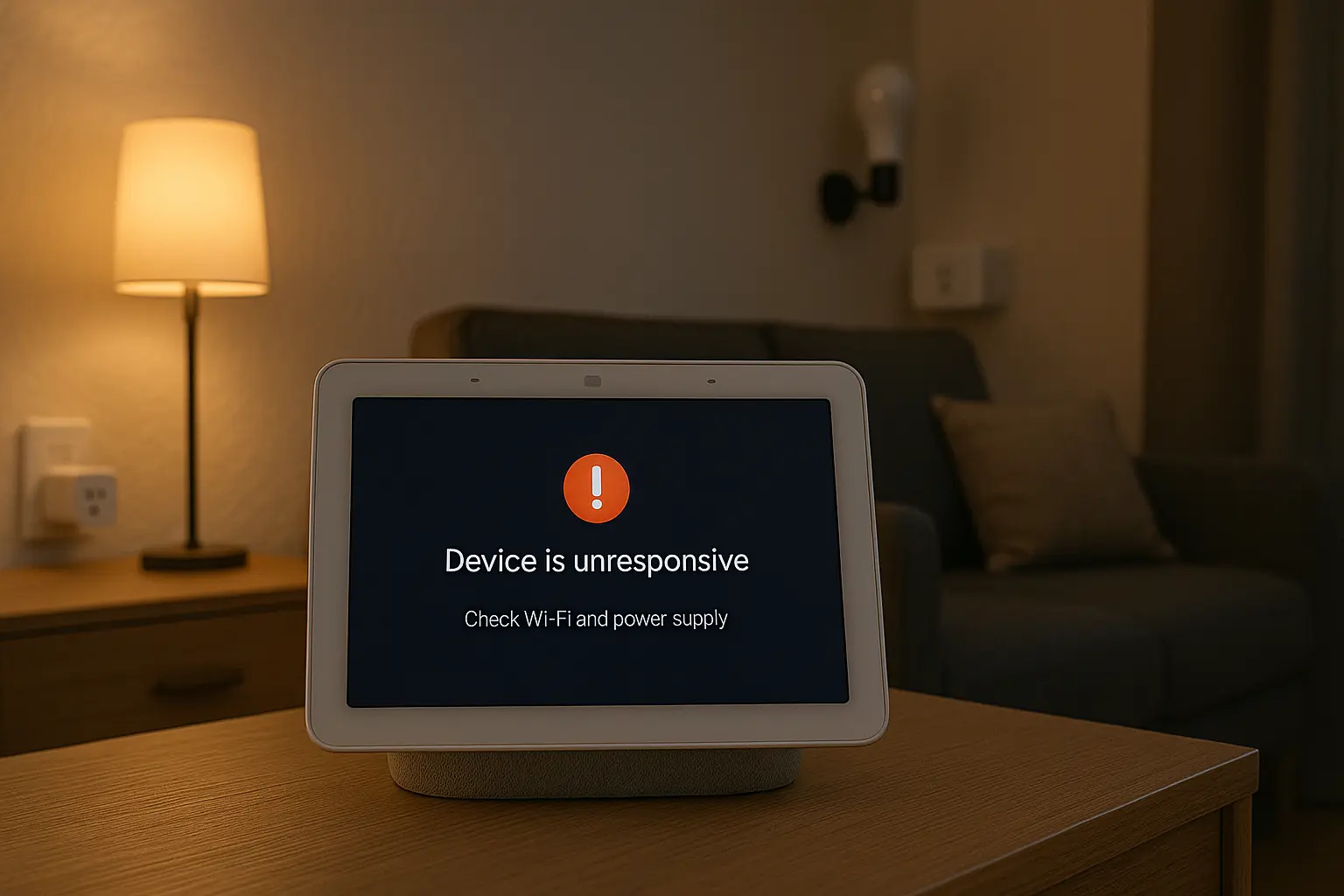
The error usually indicates a communication failure between Google Home and the device. Common causes include:
- Device is offline, frozen, or disconnected from Wi-Fi
- Google Home lost access due to missing permissions
- Router or mesh network issues (DHCP, band steering, AP isolation)
- Incorrect Matter pairing or Thread network conflict
- Device firmware or app integration failure
Quick Fixes That Solve Most Cases
Before advanced steps, try these basic solutions:
1. Restart the device
Unplug for 10 seconds and reconnect. Smart bulbs may require 2–3 seconds of power cycling.
2. Restart your Google Nest speaker or hub
Press and hold the power or microphone button (device-specific) or unplug for a moment.
3. Ensure the device is powered and within Wi-Fi range
Weak signals cause inconsistent responses, especially in mesh networks with band steering.
4. Check if the brand’s app is working
If the device does not respond inside the manufacturer app, Google Home cannot control it either.
5. Remove and re-link the device
In Google Home: Settings → Works with Google → Find the device → Unlink → Add again.
Related reading: How to Create a Guest Wi-Fi Network for Your Smart Devices
Fix Wi-Fi and Network Issues
Network issues are the number one reason for the “google home device is unresponsive” error.
1. Check 2.4 GHz vs 5 GHz compatibility
Many affordable smart plugs and bulbs only support 2.4 GHz networks. Disable “band steering” temporarily if your router merges both bands under one name.
2. Assign static IPs to frequently used devices
This keeps devices from changing their network identity after router restarts.
3. Disable AP Isolation / Client Isolation
If devices are prevented from talking to each other, Google Home cannot control them.
4. Restart your router or mesh system
Give the network a clean reset. In mesh systems, ensure your smart devices stay close to the primary node.
Fix Matter and Thread Device Problems
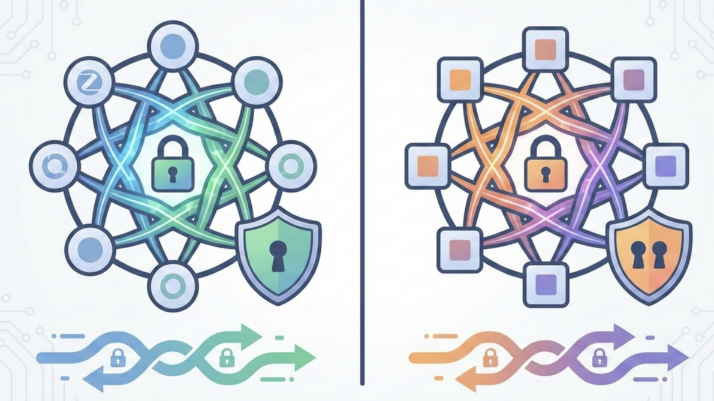
With Matter becoming standard in 2025, many “unresponsive” errors come from pairing conflicts or Thread routing issues.
1. Reset Matter pairing
Delete the device from all controllers and re-add it using Google Home as the primary controller.
2. Verify your Thread border router
Google Nest Hub (2nd gen) or Nest Wi-Fi Pro is required for Thread devices. Conflicting border routers can cause instability.
3. Update firmware
Check the manufacturer app for Matter updates. Many early 2025 Matter devices require firmware patches.
Official resource: Google Nest Support
Fix Google Home App & Permission Issues
1. Clear Google Home app cache
This resolves UI-level bugs. Android: Settings → Apps → Google Home → Storage → Clear Cache.
2. Check home structure & member permissions
If you removed or changed homes, device access is revoked. Ensure you are logged into the correct household.
3. Reinstall Google Home
Fresh installation removes outdated configuration files and API errors.
Advanced Troubleshooting (For Persistent Issues)
1. Verify cloud service status
Some brands rely on cloud APIs. If servers are down, Google cannot reach the device.
2. Use device logs (if available)
Devices like smart hubs or Home Assistant provide network and error logs that reveal the cause.
3. Factory reset the device
As a last resort, reset and pair again from scratch to eliminate corrupted configurations.
Internal reference: Why My Smart Device Keeps Disconnecting from Wi-Fi
Frequently Asked Questions
Why does Google Home sometimes say “device is offline” instead?
This usually means the device briefly disconnected from Wi-Fi or lost power. It is similar to the “google home device is unresponsive” error.
Do VPNs or DNS filters cause unresponsive devices?
Yes. DNS filtering or VPN routing can block the device from reaching its cloud servers.
Why do my lights become unresponsive after a power outage?
The device may take longer to reconnect than your router. Wait 1–2 minutes or restart the bulbs.