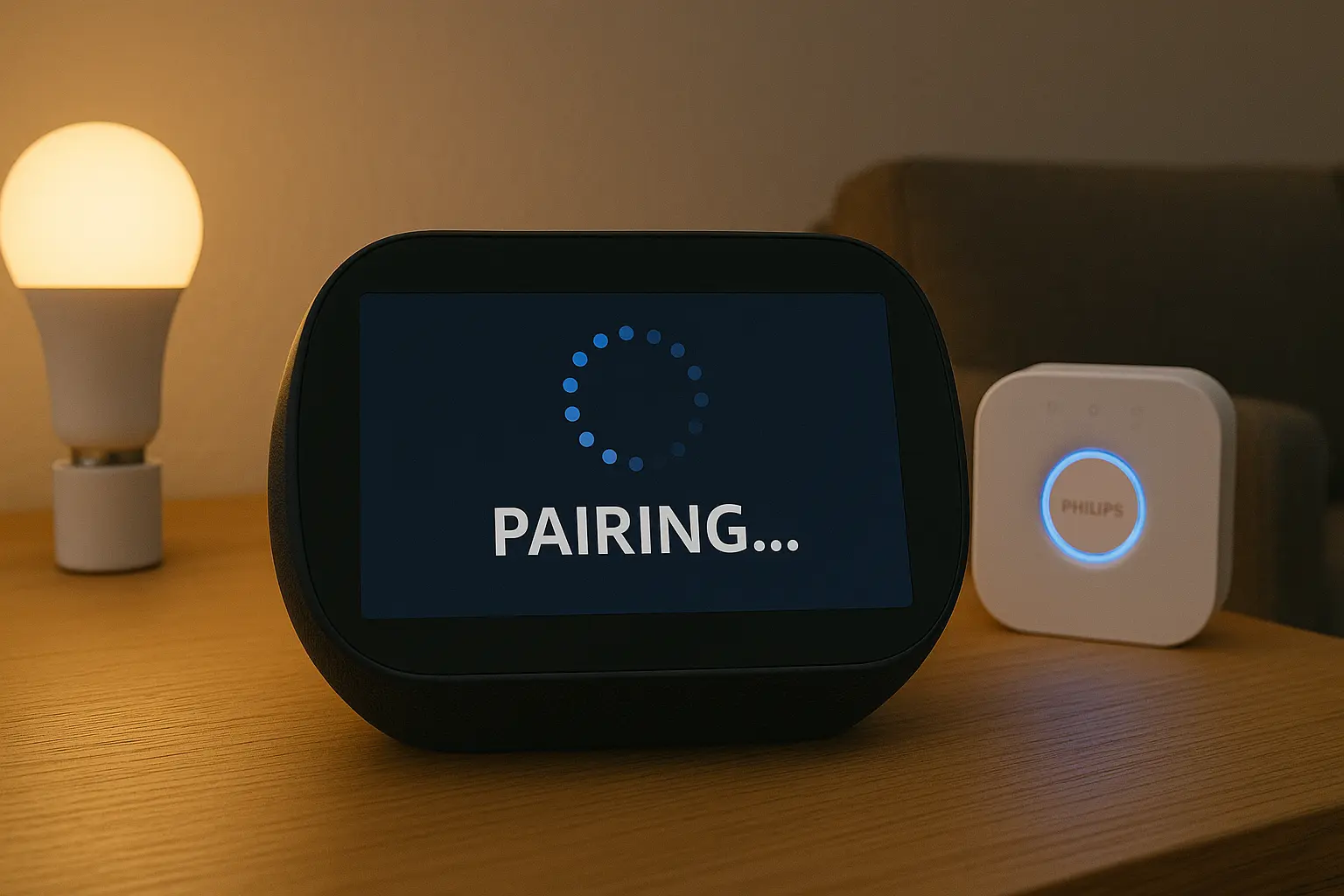
The process to connect Philips Hue to Alexa has improved in 2025 thanks to Matter support and better voice assistant integration. This guide explains every method to connect Hue lights to Alexa, including the Hue Bridge setup, Bluetooth pairing, and solutions for common connection failures.
What You Need Before Starting
- Philips Hue bulbs or lightstrips (Bluetooth or Zigbee)
- Optional: Philips Hue Bridge for multi-room control
- Amazon Alexa device (Echo Dot, Echo Show, Echo, etc.)
- The latest versions of the Alexa and Hue apps
- Stable 2.4 GHz Wi-Fi network
Official reference: Philips Hue Support
How to Connect Philips Hue to Alexa (Using the Hue Bridge)
This is the most reliable method and required for multi-room setups.
Step 1 — Set up your Hue Bridge
Plug the Bridge into power and connect it to your router via Ethernet. Open the Hue app to complete onboarding.
Step 2 — Add lights to the Hue app
Go to Settings → Lights → Add Light, and follow the pairing instructions.
Step 3 — Enable the Hue skill in the Alexa app
In Alexa: More → Skills & Games → Search “Philips Hue” → Enable Skill → Log in.
Step 4 — Discover devices
Tell Alexa: “Alexa, discover devices” or manually scan in Devices → Lights → Add Device.
Step 5 — Assign rooms and groups
Organize your lights into rooms so Alexa controls them naturally (for example: “Alexa, turn off the kitchen lights”).
Related reading: Google Home vs Alexa vs HomeKit Comparison
How to Connect Philips Hue Bluetooth Bulbs to Alexa
If you do not have a Hue Bridge, Alexa can connect directly to Bluetooth-enabled Hue bulbs.
Step 1 — Reset the bulb (optional)
Turn the bulb off and on 6 times until it flashes.
Step 2 — Open Alexa app
Go to Devices → Lights → Add Device → Select “Philips Hue Bluetooth.”
Step 3 — Turn on your bulb
Alexa automatically detects Bluetooth Hue bulbs nearby.
Why Philips Hue Is Not Connecting to Alexa
If you cannot connect Philips Hue to Alexa, it is usually caused by one of the following:
- Hue Bridge not connected to the router
- Alexa skill not linked to your Hue account
- Bulbs are on a different Wi-Fi network
- Bluetooth pairing conflict
- Matter pairing previously failed or is incomplete
- Firmware on bulbs or Bridge is outdated
Troubleshooting: Fix Hue Devices Not Connecting to Alexa
1. Restart the Hue Bridge
Unplug for 10 seconds and reconnect. Wait until all lights turn solid blue.
2. Restart your Alexa device
A quick reboot resolves most pairing inconsistencies.
3. Relink the Hue Skill
Disable the skill, re-enable it, and sign in again.
4. Reset the bulb
Power-cycle the bulb 6 times to restore factory settings before re-pairing.
5. Check for Matter conflicts
If the bulb was paired in another ecosystem, remove it first and re-add through Alexa.
Frequently Asked Questions
Do I need a Hue Bridge to use Alexa?
No. Bluetooth Hue bulbs work without a Bridge, but the Bridge provides better speed, reliability, and multi-room support.
Why does Alexa say “Device is unresponsive”?
This happens when Alexa cannot reach the Hue Bridge or cannot detect a Bluetooth signal. Restart both devices and check the Wi-Fi network.
Can I use Alexa routines with Hue lights?
Yes. After pairing, Hue scenes appear inside Alexa’s routine builder for automation.