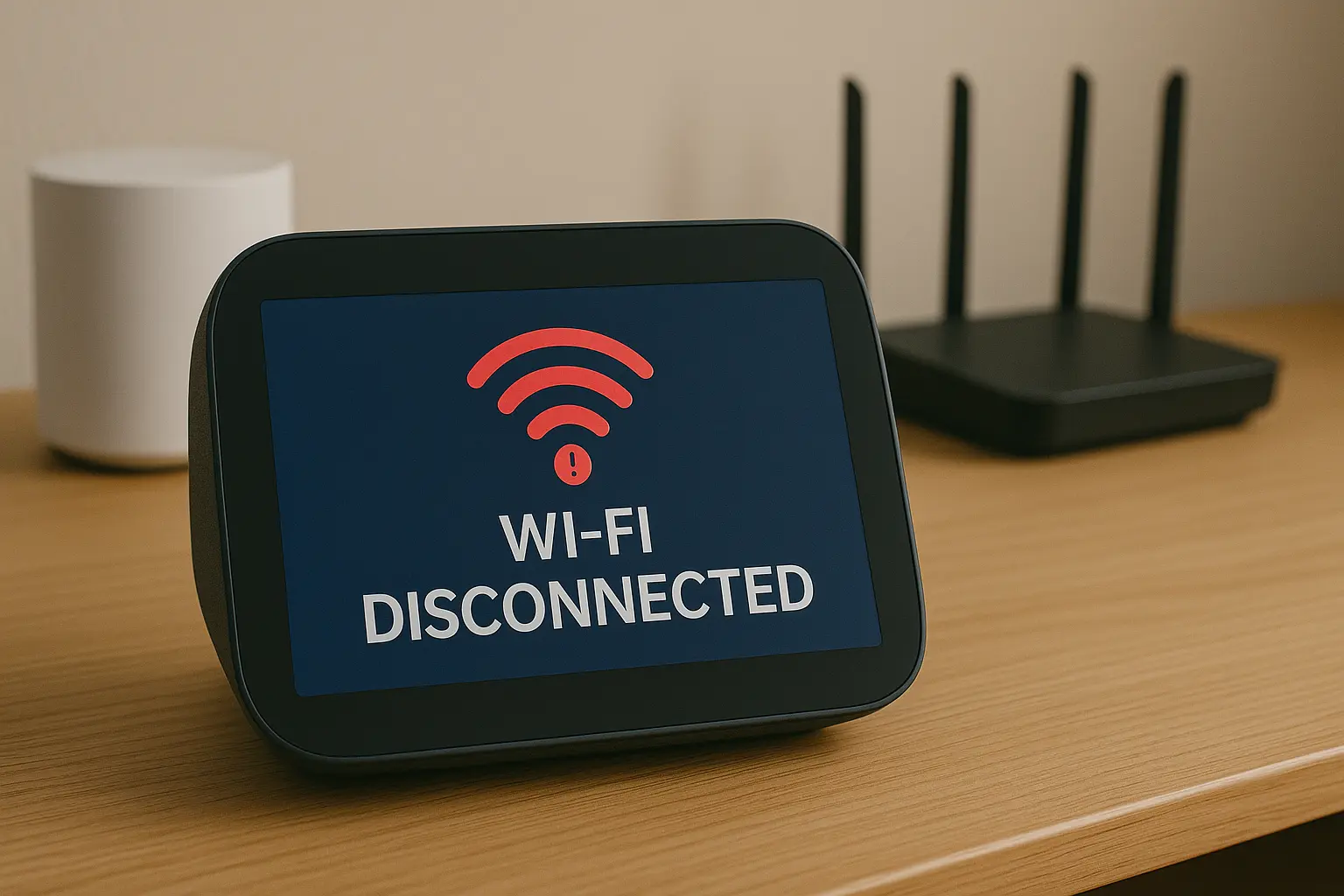
There’s nothing more frustrating in a smart home than seeing that little grayed-out icon with the words “Device is unresponsive.” As a Smart Home Integrator, this is a problem I’m called to fix almost every week. You know the device has power, you know it was working yesterday, but now, your Google Home app can’t see or control it. Your smart home suddenly feels very… dumb.
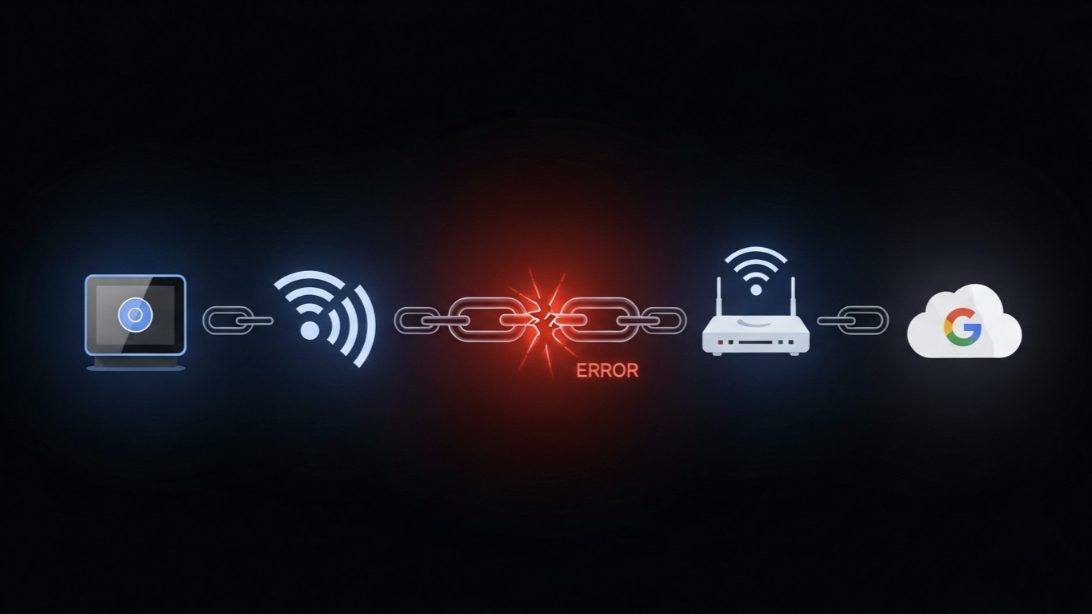
The good news is that this is rarely a sign of a broken device. More often, it’s a symptom of a breakdown in communication somewhere along the chain that connects your phone, Google’s servers, your Wi-Fi network, and the device itself. Think of it as a delivery service: the package (your command) isn’t getting to its destination, and you need to figure out where it’s getting lost.
In this definitive guide, I’ll walk you through the same logical troubleshooting process I use with my clients. We’ll start with the simplest fixes and work our way up to the more complex network issues, helping you pinpoint the problem and get your devices back online.
The Communication Chain: Understanding Why It Fails
Before we start fixing, you need to understand the four links in the chain. The “unresponsive” error means one of these links is broken:
- Your Phone to Google’s Cloud: Is your phone’s internet connection working?
- Google’s Cloud to Your Home: Is your home internet connection down?
- Your Wi-Fi Router to Your Smart Device: This is the most common point of failure. Is the device getting a stable Wi-Fi signal?
- The Smart Device Itself: Does the device have power and is its software working correctly?
Our troubleshooting process will test each of these links methodically.
The Troubleshooting Flowchart: From Simple to Complex
Always start with Level 1. Do not skip to Level 3. Following this order will save you a huge amount of time.
Level 1: The “Is It Plugged In?” Checks (The 2-Minute Fixes)
This sounds basic, but you’d be surprised how often it’s the solution.
- Check Device Power: Is the smart light bulb in a lamp that’s been turned off at the switch? Is the smart plug connected to a power strip that’s been switched off? Physically verify the device has power. For lights, flick the physical switch on and off.
- Use the Native App: Open the device’s own app (e.g., the Philips Hue app, the Wyze app, the TP-Link Kasa app). Can you control the device from there?
- If YES: The problem is NOT your Wi-Fi or the device. The issue is the link between that company’s cloud and Google’s cloud. Skip to Level 4.
- If NO: The problem is likely with your Wi-Fi or the device itself. Proceed to Level 2.
Level 2: The Network Power Cycle (The 5-Minute Fix)
If I could only give one piece of advice, it would be this: Reboot your network in the correct order. This resolves a vast majority of unresponsive issues caused by temporary IP address conflicts or router glitches.
- Unplug your smart device from power.
- Unplug your modem AND your Wi-Fi router.
- Wait a full 60 seconds. This is crucial for all components to fully reset.
- Plug in your modem first. Wait until all its lights are solid and indicate a connection (usually 2-3 minutes).
- Plug in your Wi-Fi router. Wait for it to fully boot up.
- Finally, plug your smart device back in.
- Wait another 2-3 minutes for it to reconnect, then check the Google Home app.
Level 3: The Wi-Fi Deep Dive (The Advanced Fix)
If the power cycle didn’t work, the issue is likely a persistent Wi-Fi problem. As I’ve detailed in other articles, this usually boils down to a few key issues:
- Weak Signal: The device is too far from your router. Use a Wi-Fi analyzer app to check the signal strength at the device’s location. If it’s weaker than -70 dBm, you need to move your router or, ideally, invest in a mesh Wi-Fi system.
- Band Steering: Your router is trying to push your 2.4 GHz-only smart device onto the 5 GHz band. Log in to your router’s settings and create a separate, dedicated 2.4 GHz network (e.g., “MyHome_IoT”) for your smart devices.
- Network Congestion: Your router is overwhelmed by too many devices. This is common with ISP-provided routers. Upgrading to a modern router or mesh system designed for dozens of devices is the permanent fix.
Level 4: The Cloud Re-Sync (The Final Step)
If you confirmed in Level 1 that the device works in its own app but not in Google Home, the link between the two services is broken. We need to force them to shake hands again.
- Open the Google Home app.
- Tap on your profile icon/picture in the top right.
- Select “Assistant settings”, then go to the “Home Control” (or “Works with Google”) section.
- Find the service for your unresponsive device (e.g., “Philips Hue”).
- Tap on it and select “Unlink account”. Confirm you want to unlink.
- Now, tap the “+” sign to add a new service. Find your service again and go through the process of linking your account, just like you did the first time.
- This will force a complete re-synchronization of your devices with Google Home.
The Unresponsive Outdoor Lights
A client, Mark, called me because his new smart landscape lights were constantly “unresponsive” in the Google Home app. He had already tried restarting them and unlinking/relinking the service multiple times to no avail.
The Investigation: The lights worked perfectly when controlled from their own native app. This immediately told me the problem was likely not Wi-Fi signal strength. The issue had to be with the cloud-to-cloud connection. I asked one key question: “Did you recently change your password for the lighting app or your email?” He confirmed he had updated the password for the lighting app a week prior as part of a security sweep.
The “Aha!” Moment: When he changed his password on the native app, he broke the authorization “key” that Google Home was using to access that account. Google was trying to log in with the old, invalid password, so the service refused the connection, resulting in the “unresponsive” error.
The Solution: We followed the exact steps in Level 4. We unlinked the lighting service from his Google Home account. Then, we re-linked it, but this time, when prompted to log in, he used his new password. As soon as the account was linked, all the lights immediately appeared online and were fully controllable.
The Takeaway: The “unresponsive” error doesn’t always mean a network issue. It can be an authentication failure. Always consider recent password changes as a potential cause.
My Final Verdict: Be Methodical, Not Haphazard
The “Device is unresponsive” error can be incredibly frustrating, but it’s almost always solvable. The key is to resist the urge to randomly try different things. By following a logical, step-by-step process—from checking the physical plug to re-syncing the cloud service—you are no longer guessing. You are diagnosing.
Start with the simplest solutions first. More often than not, a proper network power cycle or a quick check of the native app will reveal the source of the problem and get your smart home running smoothly again.