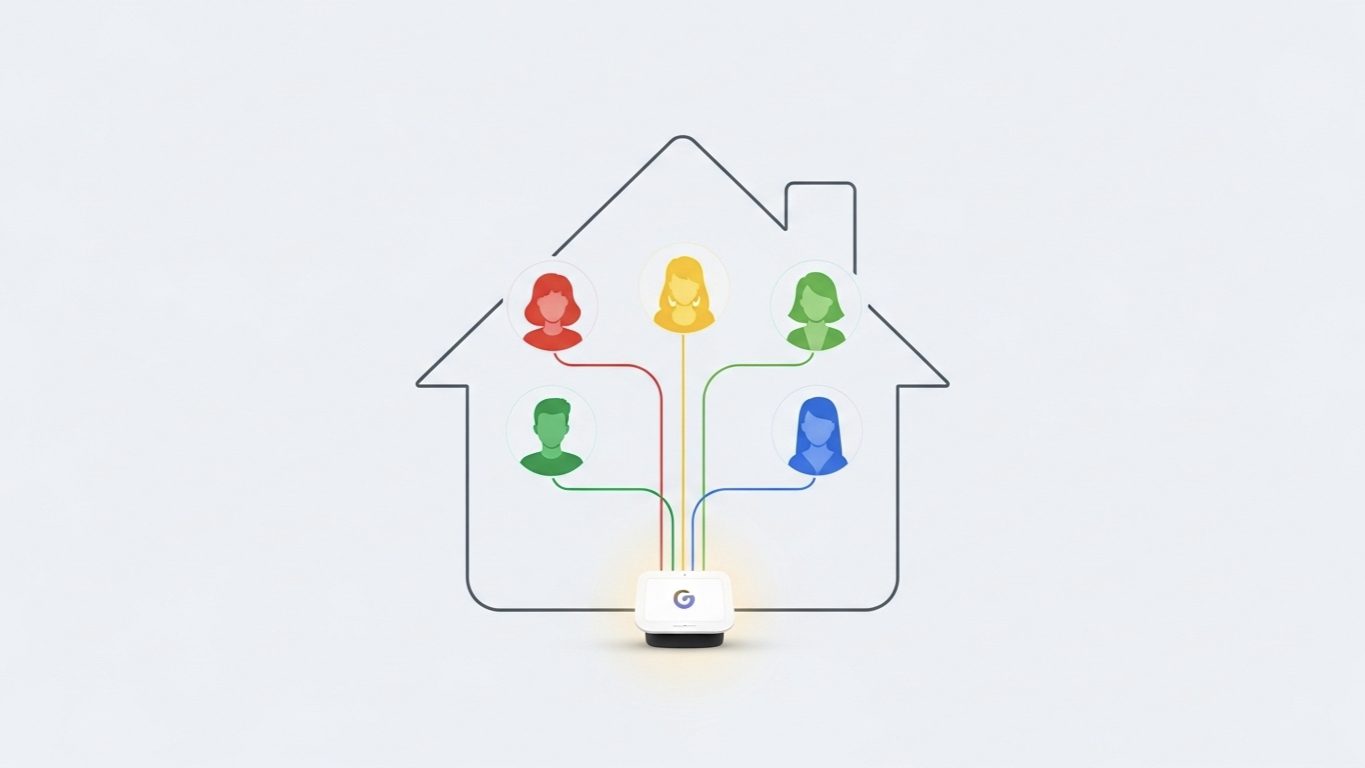
One of the most satisfying moments for me as a Smart Home Integrator is when a client’s smart home truly becomes a family home. It’s that point when it’s not just one person controlling everything from their phone, but when everyone in the household—partners, kids, even trusted guests—can interact with the home seamlessly.
In the Google Home ecosystem, this is achieved by “inviting members” to your virtual “Home.” However, many people I work with are hesitant to do this. They worry it’s too complicated, or that they might be giving away too much control or access to their personal information. These are valid concerns!
The good news is that Google has built a robust and secure system for sharing access. In this guide, I’ll walk you through the exact steps to invite family members, explain the different levels of access, and show you how to set up critical features like Voice Match to create a personalized experience for everyone.
Why Share Access? The Power of a Personalized Home
Before we get to the “how,” let’s cover the “why.” When you invite someone to your Google Home, you unlock several key features that make the home smarter for everyone:
- Personalized Results: With Voice Match set up, Google can recognize who is speaking. When your partner asks, “What’s on my calendar?” they’ll hear their own appointments, not yours. When you ask for your “commute to work,” you’ll get directions to your office, not theirs.
- Access to Personal Media: Family members can link their own Spotify, YouTube Music, or other media accounts. When they ask Google to “play my workout playlist,” it will pull from their account, not yours, preventing your recommendations from getting messed up.
- Full Device Control: Everyone you invite can control all the smart devices in the home from their own phone using the Google Home app. No more being the sole “tech support” person for turning lights on and off.
- Household Contacts: You can set up a list of household contacts that anyone can call hands-free by saying, “Hey Google, call Grandma.”
In short, sharing access transforms your smart speakers from a personal assistant into a true family assistant.
A Step-by-Step Guide to Inviting a Home Member
The process is straightforward and is initiated by the “manager” of the Google Home (that’s likely you). The person you are inviting will need their own Google account.
- Open the Google Home App: On your phone, launch the Google Home app.
- Go to Settings: Tap the “Settings” gear icon on the main screen.
- Manage Home Members: Under the “General” section, tap on “Home members” (or it might be under a “Household” section). You will see yourself listed as the manager.
- Invite a New Member: Tap the “+” icon in the top right corner.
- Enter Their Email: Type in the Gmail or Google account email address of the person you want to invite. You can also select them from your contacts. Tap “Next” and then “Send invitation”.
- The Invited Person Must Accept: The family member will now receive an email and a notification in their own Google Home app. They must open it and tap “Accept Invitation”. They will be guided through a few setup steps on their own phone.
Once they accept, they will appear in your list of home members, and all the devices in your home will appear in their Google Home app.
The Most Important Next Step: Set Up Voice Match
This is a critical step that I insist on with every client family. Inviting someone to the home gives them control, but setting up Voice Match gives them personalization and security.
Case Study: The Calendar Confusion
A client, Mark, invited his wife, Sarah, to their Google Home. The next morning, he asked his Nest Hub, “Hey Google, what’s on my schedule today?” and was confused when it started reading out Sarah’s 9:00 AM dentist appointment. He thought he had broken something.
The Problem: Without Voice Match, Google doesn’t know who is speaking. It defaults to the primary account holder’s services for some things but can get confused with others. It couldn’t differentiate between “my schedule” for Mark and “my schedule” for Sarah.
The Solution: The fix took less than five minutes for each of them.
- On her own phone, Sarah opened the Google Home app.
- She navigated to Settings > Google Assistant > Voice Match.
- She tapped “Add a device” and selected the shared speakers in their home.
- The app then prompted her to say a few phrases like “Hey Google” and “Okay Google” so the Assistant could learn the unique characteristics of her voice.
- Mark did the exact same process on his phone.
The Result: The very next day, the problem was solved. When Mark asked for his schedule, he got his meetings. When Sarah asked for hers, she got her appointments. The music they requested pulled from their individual Spotify accounts. Voice Match is the key that unlocks true multi-user personalization and is essential for maintaining privacy within a shared home.
Managing Member Roles and Removing Access
What if you want to remove someone’s access later on? As the home manager, you have full control.
- Changing Roles: In the “Home members” settings, you can tap on a person’s name to make them a “Manager” as well, giving them the ability to add or remove other members. Use this sparingly.
- Removing a Member:
- Go back to the Settings > Home members screen.
- Tap on the name of the person you wish to remove.
- Tap the trash can icon or the “Remove” option in the top right corner.
- Confirm your choice. Their access will be revoked instantly.
This is useful for removing access for former roommates, house guests, or in the event of a separation.
My Final Verdict: A Smarter Home is a Shared Home
Don’t be the sole gatekeeper of your smart home’s features. By sharing access with your family, you empower them to get the most out of the technology you’ve invested in. It reduces your burden as the “tech expert” and makes the home more useful and personal for everyone living in it.
The process is simple and secure. Just remember to complete that crucial final step: have every single person set up Voice Match. It’s the key to turning a smart house into a truly intelligent family home.