I’ve learned a fundamental truth: a smart home is only as smart as its network. You can have the best, most expensive smart devices in the world, but if your Wi-Fi is weak, congested, or unreliable, your experience will be frustrating. Devices will be unresponsive, cameras will buffer, and automations will fail.
Before you blame that “faulty” smart plug or light, I urge my clients to look at the invisible foundation of their home—the Wi-Fi network. The tiny, low-power radio in a smart plug can’t compete with the powerful antenna in your laptop. It needs a strong, stable signal to function correctly.
Over years of troubleshooting in countless homes, I’ve developed a core list of the five most impactful changes you can make to improve your Wi-gnal specifically for the demands of IoT devices. Let’s build a better foundation for your smart home.
Tip 1: It’s All About Location, Location, Location
The single biggest mistake I see homeowners make is hiding their Wi-Fi router in a closet, a basement corner, or shoved behind a TV cabinet. Wi-Fi signals are radio waves; they are weakened by distance and physical obstructions like walls, concrete, and large metal appliances (like refrigerators).
The Pro Move: Centralize and Elevate.
- Centralize: Find the most central location in your home possible and place your router there. For most multi-story homes, this is on the main floor. The goal is to minimize the number of walls the signal has to pass through to reach the furthest devices.
- Elevate: Don’t place your router on the floor. Wi-Fi signals tend to broadcast outwards and slightly downwards. Placing your router on a bookshelf or a high table allows the signal to travel more effectively over and around furniture.
Tip 2: Create a Dedicated “IoT Lane” on Your Wi-Fi Highway
Most modern routers are “dual-band,” meaning they broadcast on two different frequencies: 2.4 GHz and 5 GHz.
- 2.4 GHz: Longer range, better at penetrating walls, but more prone to interference and slower speeds.
- 5 GHz: Shorter range, less penetration, but much faster speeds and less interference.
Nearly 100% of smart home devices (plugs, lights, switches) are designed to use the 2.4 GHz band for its superior range. The problem is that many routers combine these two bands into a single Wi-Fi name and try to “steer” devices to the 5 GHz band. This can cause your 2.4 GHz-only smart device to get confused and disconnect.
The Pro Move: Split Your Bands.
- Log into your router’s administration settings (usually via a web browser or an app).
- Find the Wi-Fi settings and look for an option called “Band Steering,” “Smart Connect,” or similar. Disable it.
- This will allow you to give your 2.4 GHz and 5 GHz networks different names (SSIDs). I recommend naming them clearly, for example: “MyHome_5G” and “MyHome_IoT” (for the 2.4 GHz band).
- Connect all your high-speed devices (laptops, phones, streaming boxes) to the 5G network. Connect all of your smart home devices exclusively to the IoT/2.4 GHz network. This creates a dedicated, stable lane for them, free from band-steering confusion.
Tip 3: The Ultimate Fix – Upgrade to a Mesh Wi-Fi System
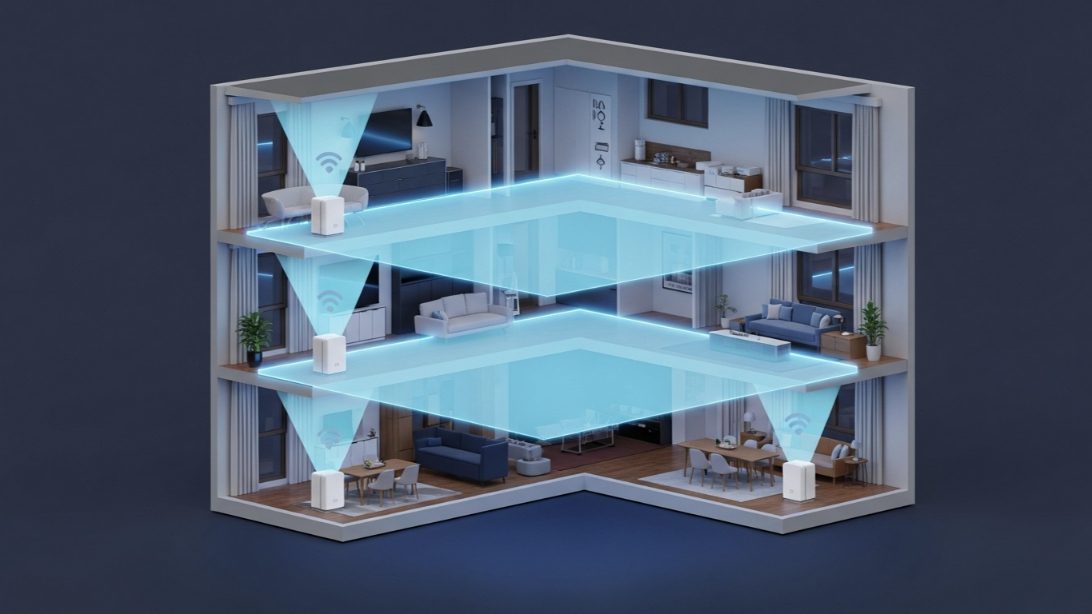
This is, without a doubt, the most important tip on this list. A single, traditional router, no matter how powerful, will always struggle to cover an entire home with a consistently strong signal. There will always be dead spots or weak areas.
The Pro Move: Ditch the single router and invest in a mesh Wi-Fi system.
A mesh system (like Eero, Google Nest Wifi, TP-Link Deco) consists of a main router “node” and one or more satellite “nodes” that you place around your home. These nodes work together to create a single, seamless Wi-Fi network that blankets your entire property in a strong signal. It’s like having a powerful router in every room.
Case Study: The Unreachable Smart Lock. I worked with a client who had a smart lock on their detached garage. The lock was constantly disconnecting because the signal from the router in their house was too weak to reliably reach it. We could have tried a simple Wi-Fi extender, but those often create more problems by cutting bandwidth and adding complexity. Instead, we installed a 3-pack Eero mesh system. We placed one node in the house near the garage, and the signal was instantly perfect. For smart homes, especially those with outdoor or basement devices, a mesh system isn’t a luxury; it’s a foundational requirement for reliability.
Tip 4: Choose the Quietest Channel
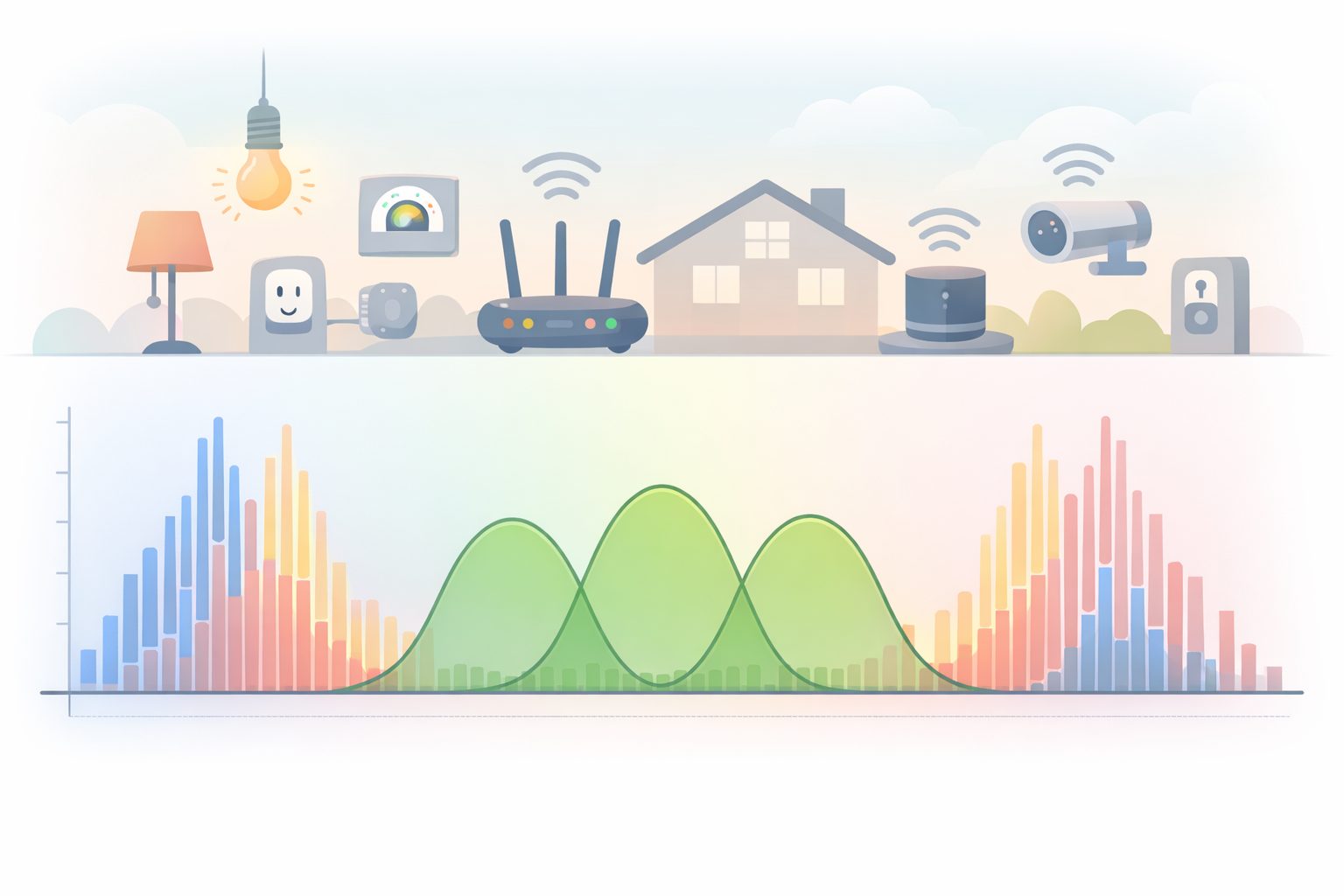
Think of Wi-Fi channels like lanes on a highway. If everyone is trying to use the same lane, you get a traffic jam (interference). This is especially true on the crowded 2.4 GHz band. Most routers are set to “Auto” channel selection, but they don’t always choose the best one. If you live in an apartment or a dense neighborhood, your neighbor’s Wi-Fi could be interfering with yours.
The Pro Move: Manually Set Your Channel.
- Use a Wi-Fi analyzer app on your phone to scan the airwaves and see which 2.4 GHz channels are the most crowded.
- The channels 1, 6, and 11 are the best choices because they don’t overlap with each other.
- Log into your router’s settings, find the 2.4 GHz wireless settings, and change the “Channel” from “Auto” to whichever of 1, 6, or 11 is the least congested in your area. This can significantly reduce interference and improve stability.
Tip 5: Perform a Proper Network Reboot
This sounds insultingly simple, but the order in which you do it matters immensely. A proper reboot can clear up temporary glitches, IP address conflicts, and memory leaks in your router that cause instability over time.
The Pro Move: The 60-Second Power-Cycle Sequence.
- Unplug BOTH your modem and your router from power.
- Wait a full 60 seconds. Don’t rush this. This allows all the internal components to fully discharge and reset.
- Plug in your modem first. Wait for it to completely boot up and establish a connection with your ISP (all the lights should be solid). This can take 2-5 minutes.
- Then, plug in your router. Wait for it to fully boot up.
I advise my clients to do this once a month as preventative maintenance. This sequence ensures your router gets a fresh, clean IP address from your modem and can assign addresses to your devices without any leftover conflicts. It’s the simplest way to maintain a healthy network.
My Final Verdict: Build a Strong Foundation
A fast internet speed test doesn’t mean you have a healthy Wi-Fi network. For a smart home, stability and coverage are far more important than raw speed. By implementing these five tips—especially centralizing your router and, ideally, upgrading to a mesh system—you are building a robust and reliable foundation. This investment will pay off every single day with a smart home that just works, responding quickly and reliably, every time.