I can confidently say that the combination of Philips Hue lights and Amazon Alexa is the “peanut butter and jelly” of the smart home world. It’s one of the most frequent, reliable, and satisfying integrations I perform for my clients. When these two systems work together, your home lighting transforms from a simple utility into an intelligent, responsive environment controlled entirely by your voice.
However, getting them to talk to each other for the first time can seem a little daunting if you’ve never done it before. You’re dealing with two different apps and a concept called “Skills.”
Fear not. In this guide, I’m going to give you the exact, foolproof process I use on the job. We’ll walk through every step, explain the “why” behind it, and even cover the most common issues people face. By the end, you’ll not only have your lights connected but you’ll understand how to manage them like a pro.
Before You Begin: The Two-Minute Check-in
An expert always prepares their tools. To ensure this process is perfectly smooth, let’s do a quick check to make sure you have everything you need:
- Philips Hue Lights Set Up: Your Hue lights should already be installed and working correctly through the Philips Hue app. You should be able to turn them on/off and change their colors from your phone.
- The Philips Hue Bridge: For the most reliable and feature-rich experience, you should be using a Hue Bridge. This is the small white box connected to your internet router.
- An Amazon Echo Device: Any speaker or display with Alexa built-in (Echo, Echo Dot, Echo Show, etc.) will work.
- The Apps: You need both the Philips Hue app and the Amazon Alexa app installed on your smartphone.
- Login Information: Have your Philips Hue account email and password ready. You’ll need it.
Expert Take: Bridge vs. Bluetooth.
Some newer Hue bulbs can connect directly to Alexa via Bluetooth without a Bridge. While this is simpler for a single bulb, I strongly recommend using the Hue Bridge for any setup with more than one or two lights. The Bridge provides significantly better reliability, faster response times, control of your lights when you’re away from home, and access to more advanced features. This guide will focus on the Bridge method, as it’s the professional standard.
The Connection Process: A Step-by-Step Walkthrough
The core of this process involves enabling the “Philips Hue Skill” within the Alexa app. Think of a Skill as a small app that you install on Alexa to teach it how to control a new type of device. Let’s begin.
- Open the Amazon Alexa App: Launch the app on your smartphone.
- Navigate to “Skills & Games”: Tap the “More” button in the bottom-right corner. From the menu that appears, select “Skills & Games”.
- Search for the Philips Hue Skill: Tap the search icon (a magnifying glass) in the top-right. Type “Philips Hue” and press search. The official skill, with the Philips Hue logo, should be the first result. Tap on it.
- Enable the Skill and Link Your Account: Tap the “Enable To Use” button. This will redirect you to a Philips Hue login page. This is where you need to enter the Hue account email and password you prepared earlier. Grant permission when prompted. This “handshake” authorizes Alexa to control your Hue account.
- Discover Devices: After you successfully link your accounts, a screen will pop up asking you to discover devices. Tap “Discover Devices”. Alexa will now scan your network and import all the lights and rooms you’ve already set up in your Hue app. This may take up to 45 seconds.
- Organize and Test: Once discovery is complete, Alexa will show you the new devices it found. I recommend going to the “Devices” tab in the Alexa app, tapping on “Lights,” and making sure all your lights appear with the names you gave them in the Hue app. Now for the fun part: Say, “Alexa, turn on the living room lights.” They should turn on instantly!
From Clunky to Cinematic with a Single Phrase
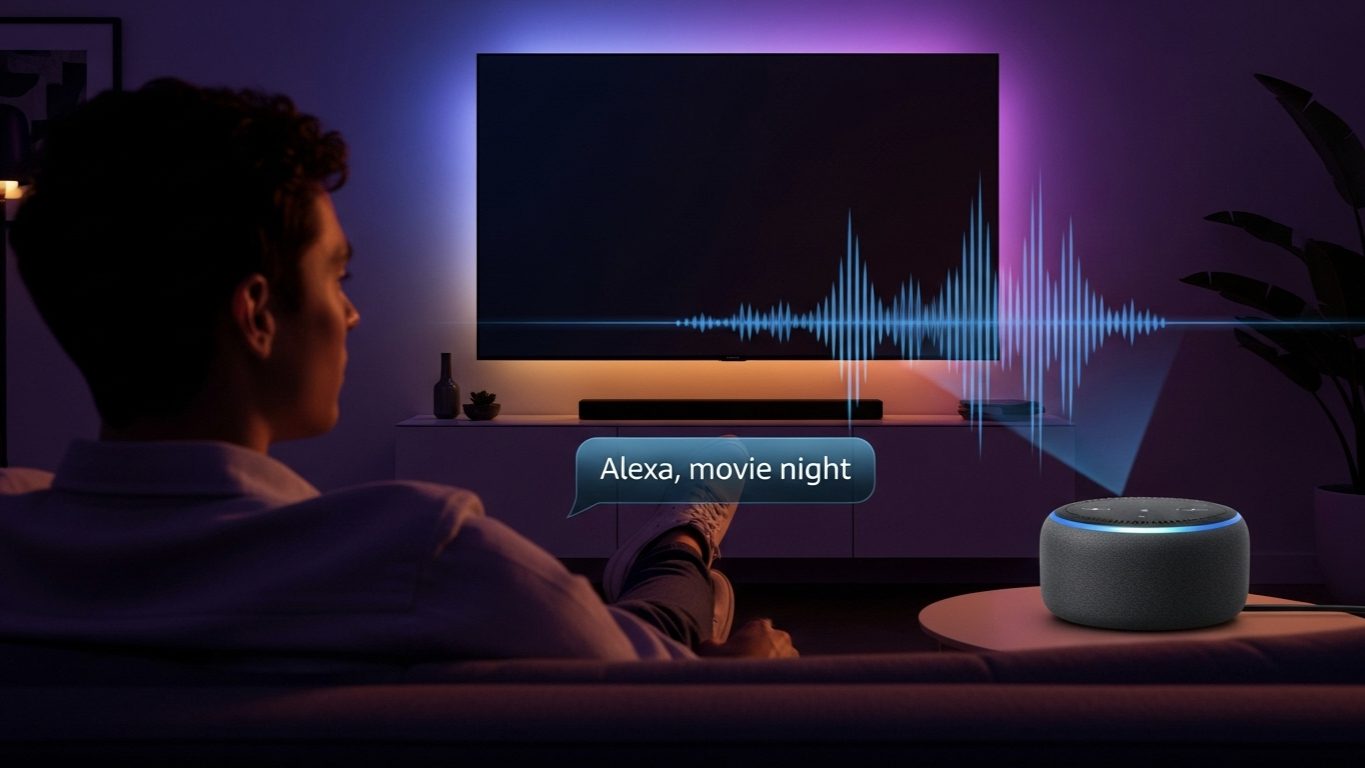
I recently worked with a client, Sarah, who was an avid movie fan. Her “movie night” setup involved finding the TV remote, finding the soundbar remote, and then getting up to dim three separate lamps using their individual dimmer switches. It was a hassle that took her out of the moment.
The Problem: Too many steps and too much friction to create the perfect movie-watching atmosphere.
The Solution: After connecting her Hue lights to Alexa, we built a simple but powerful Alexa Routine called “Movie Time.”
- The Trigger (Starter): A voice command, “Alexa, it’s movie time.”
- The Actions:
- Set the “Living Room” Hue lights to a dim, cinematic blue color at 15% brightness.
- Turn off the “Kitchen” lights completely.
- Wait 2 seconds (using a delay action).
- Have Alexa say, “Okay. Enjoy the show.”
The Result: Sarah can now walk into her living room, say one phrase, and watch as the entire room’s ambiance transforms perfectly for a movie. It’s a small touch, but she told me it feels “like magic” every single time. This is the true power of this integration—not just on/off control, but creating experiences.
Alexa Can’t Find My New Hue Light!
This is, without a doubt, the most common follow-up question I get. You’ve successfully connected everything, but a week later you add a new lamp to your office. You’ve set it up in the Hue app, but Alexa doesn’t know it exists. What do you do?
The Challenge: The initial sync is a one-time event. Alexa doesn’t automatically know when you add new devices to your Hue system later on.
The Expert Solution: Manually Re-Discover. You don’t need to disable and re-enable the skill. You just need to tell Alexa to look again. There are two easy ways to do this:
- The Voice Command (Easiest): Simply say, “Alexa, discover devices.” She will scan your system again and should find the new light within a minute.
- The App Method (Most Reliable): If the voice command doesn’t work for some reason, do it manually in the app:
- Go to the “Devices” tab.
- Tap the “+” icon in the top-right corner.
- Tap “Add Device”.
- Select “Light” from the list, then choose “Philips Hue”.
- Follow the on-screen prompts to discover devices. This forces a more thorough scan.
Pro-Tip on Naming: To avoid confusion, make sure the names of your lights and rooms are simple and distinct. Avoid calling a light “Table Lamp” in a room named “Living Room Table.” Alexa can get confused. I always recommend naming the light something unique like “Reading Lamp” and placing it in the “Living Room” group in the Alexa app.
My Final Take: A Match Made in Smart Home Heaven
Connecting Philips Hue to Amazon Alexa is a foundational step in building a truly smart home. It elevates your lighting from a manual task to a dynamic part of your home’s ecosystem. You’ve now unlocked the ability to control individual lights, entire rooms, and complex scenes with the simplest interface of all: your voice.
Now that you’re connected, I encourage you to explore Alexa Routines. This is where you’ll combine your lights with other smart devices, music, and announcements to create custom automations that truly make your home work for you.