As a Smart Home Integrator, I’ve seen that the initial “wow” factor of a smart speaker comes from its ability to play any song on command. But the real magic, the feature that transforms a home’s entire atmosphere, is multi-room audio. It’s the ability to have a single, perfectly synchronized stream of music playing throughout your house as you move from the kitchen to the living room to the patio. It makes your whole home feel connected.
Years ago, achieving this required thousands of dollars in custom wiring and specialized equipment. Today, you can achieve the same, seamless effect in just a few minutes using the smart speakers you already own. Both Amazon Alexa and Google Home have powerful, easy-to-use features for grouping speakers together.
Many of my clients don’t realize how simple this is to set up. In this guide, I’ll walk you through the exact step-by-step process for creating a multi-room music group on both major platforms. Let’s fill your home with sound.
The Core Concept: One Stream, Many Speakers
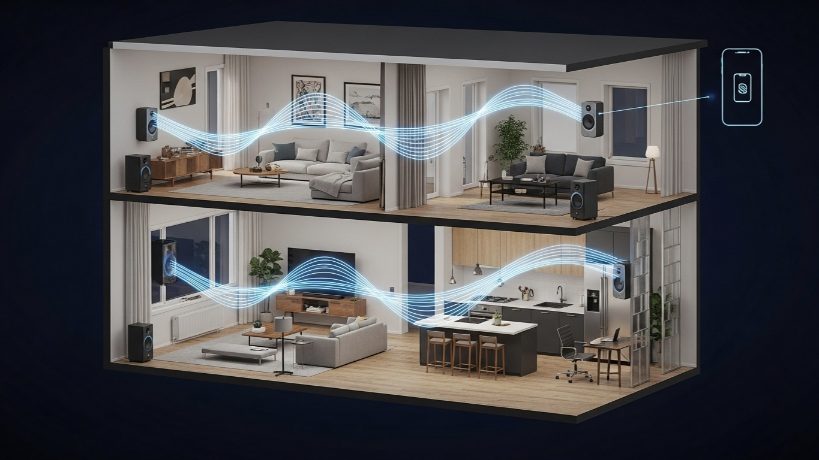
The idea behind a speaker group is simple. You create a “virtual” speaker in your app. When you tell your assistant to play music on this virtual speaker, it simultaneously sends the same audio stream to all the physical speakers you’ve assigned to that group. The platform’s software handles the complex task of keeping all the speakers perfectly in sync, so you don’t hear any weird echoes or delays as you walk between rooms.
You can create multiple groups for different scenarios. For example:
- An “Everywhere” group that includes every speaker in the house.
- A “Downstairs” group for the kitchen and living room.
- A “Party Zone” group for the patio and family room.
This flexibility is what makes multi-room audio so powerful.
How to Create a Speaker Group in the Amazon Alexa App
Amazon’s feature is called “Multi-Room Music.” It works with all Echo devices and even some third-party Alexa-enabled speakers.
- Open the Alexa App: Launch the app on your smartphone.
- Navigate to the “Devices” Tab: Tap the “Devices” icon in the bottom navigation bar.
- Start Creating a Group: Tap the “+” icon in the top right corner.
- Select “Combine Speakers”: From the menu that pops up, choose the option “Combine speakers.”
- Choose “Multi-Room Music”: You will see a few options. Select “Multi-Room Music.”
- Select Your Speakers: The app will show you a list of all your compatible smart speakers. Tap the checkbox next to each speaker you want to include in this group. For an “Everywhere” group, select all of them. Tap “Next.”
- Name Your Group: This is a critical step for easy voice control. Give the group a simple, intuitive name. I highly recommend using “Everywhere” for your main group, as it’s a natural command (“Alexa, play music everywhere”). Other good names are “Downstairs,” “Upstairs,” or “Party.” Tap “Save.”
How to Use Your New Alexa Group:
Using the group is incredibly easy. Just say:
“Alexa, play [Your Playlist Name] on the Everywhere group.” or, more simply, “Alexa, play [Artist Name] everywhere.”
The music will start playing in perfect sync across all the selected speakers.
How to Create a Speaker Group in the Google Home App
Google’s feature is simply called a “Speaker Group.” It works with all Google Nest speakers, Chromecast devices, and many third-party speakers with Chromecast built-in.
- Open the Google Home App: Launch the app on your smartphone.
- Start Creating a Group: On the main “Favorites” or “Devices” screen, tap the “+” icon in the top left corner.
- Select “Speaker Group”: From the “Add to home” menu, choose “Speaker group.”
- Select Your Devices: The app will show a list of all your compatible audio devices. Tap the checkbox next to each device you want to include in the group. Tap “Next.”
- Name Your Group: Just like with Alexa, give your group a simple, easy-to-say name. “Whole Home” or “Everywhere” are excellent choices. Tap “Save.”
Your new speaker group will now appear in your list of devices, looking like a single virtual speaker.
How to Use Your New Google Home Group:
Using the group is just as simple:
“Hey Google, play [Your Playlist Name] on the Whole Home group.”
You can also start music on a single speaker and then transfer it to the group from the Google Home app’s media controls.
Pro Tips for the Best Multi-Room Audio Experience
Setting up the group is easy, but optimizing the experience is where my professional experience comes in. Here are the tips I give all my clients.
Tip 1: Use a Strong Wi-Fi Network.
Multi-room audio is one of the most demanding tasks for your home Wi-Fi. You are streaming multiple, high-quality, synchronized audio streams simultaneously. If your speakers are frequently cutting out or losing sync, it’s almost always a sign of a weak or congested Wi-Fi network. A mesh Wi-Fi system is highly recommended for any home that plans to use multi-room audio regularly. It ensures that every speaker has a strong, stable connection back to the router.
Tip 2: Adjust Group Volume Levels.
A common issue is that the volume level that’s perfect for your large living room speaker is way too loud for the small speaker in your bedroom. You can adjust the volume of individual speakers *within* the group while music is playing.
- In the app (both Alexa and Google Home), when music is playing on a group, you will see a master volume slider for the whole group. Below it, you will see individual volume sliders for each speaker in the group.
- You can use these to fine-tune the balance, turning the bedroom speaker down while keeping the living room speaker at a higher volume. The system will remember these relative levels for the next time you use the group.
Tip 3: Remember Stereo Pairing is Different.
Don’t confuse a multi-room group with a “Stereo Pair.” A stereo pair is when you take two identical smart speakers (e.g., two Echo Dots) and link them together in the same room to create dedicated left and right channels for a true stereo soundstage. This is a separate feature from a multi-room music group, which plays mono sound from each speaker by default. You can, however, include a stereo pair as a single “speaker” within a larger multi-room group.
My Final Verdict: The Easiest “Wow Factor” Upgrade
Creating a multi-room audio group is a simple, five-minute task that can fundamentally change the way you enjoy music and audio in your home. It’s the kind of feature that, once you experience it, you’ll never want to live without.
Whether you’re hosting a party and want a consistent vibe throughout the house, or you’re just doing chores and want your podcast to follow you from room to room, speaker groups are the key. Follow these simple steps, create your “Everywhere” group, and get ready to be impressed by the power of your existing smart speakers.