A Smart Home Integrator who has installed countless Philips Hue systems, I can tell you that they are one of the most reliable and beloved products in the entire smart home ecosystem. That’s why it’s so jarring when you open the Hue app, ready to set the mood, and are greeted by that dreaded “Unreachable” message next to one or all of your lights.
Your first instinct might be to panic, thinking the bulb is broken or the whole system has failed. But take a deep breath. In my professional experience, this “unreachable” status is rarely a sign of a dead bulb. Instead, it’s a symptom of a communication breakdown somewhere between the Hue app, the Hue Bridge, and the bulb itself. The bulb is essentially lost, and it can’t hear the commands you’re sending.
In this definitive guide, I’ll walk you through the exact troubleshooting flowchart I use to diagnose and fix this issue for my clients. We’ll start with the simplest, most common culprits and work our way up, ensuring we find the root cause and get your lights back online permanently.
The Golden Rule: Check the Physical Switch First!
This is, without exaggeration, the solution to at least 50% of the “unreachable” service calls I get. A smart bulb needs constant, uninterrupted power to be “smart.” If the bulb is in a lamp or ceiling fixture that is connected to a physical wall switch, and that switch has been turned off, the bulb has no power. It cannot receive a wireless signal if it’s not powered on.
The Fix: Before you touch the app, walk over to the light fixture.
- If it’s a lamp, make sure the switch on the cord is in the ON position.
- If it’s a ceiling light, make sure the wall switch is flipped to the ON position.
It’s a common habit for family members or guests to turn off lights at the switch. I often advise my clients to purchase small, clear covers for light switches that control Hue bulbs to prevent them from being accidentally turned off.
Level 2 Troubleshooting: Checking the Hue Bridge & Network
If you’ve confirmed the bulb has power, the next link in the chain is the Hue Bridge and your home network. The Bridge is the brain of your Hue system, translating commands from the app into a Zigbee signal the bulbs can understand.
- Check the Hue Bridge Lights: Go to your Hue Bridge. You should see three solid blue lights.
- Power Light (Left): If this is off, check the power cable.
- Network Light (Middle): If this is blinking or off, it means the Bridge is not connected to your router. Check that the Ethernet cable is plugged in securely at both ends (the Bridge and your router). Try a different port on your router.
- Internet Light (Right): If this is off, it means your Bridge is connected to the router, but the router itself doesn’t have an internet connection. Check your home’s internet service.
- Perform a Full Network Power Cycle: This is my go-to fix for countless smart home glitches. Unplug your modem, your router, AND your Hue Bridge. Wait a full 60 seconds. Plug in the modem first, wait for it to fully connect. Then plug in the router, wait for it to boot. Finally, plug in the Hue Bridge. This process clears out any network conflicts.
- Check the Distance: The Hue system uses its own Zigbee mesh network. Each bulb acts as a repeater, extending the signal. However, if a single bulb is very far away from the Bridge or any other Hue bulb, it might be out of range. Is the unreachable bulb in a detached garage or a far corner of the basement? Try moving a Hue-compatible lamp closer to it to act as a signal booster.
The Mystery of the Downstairs Den
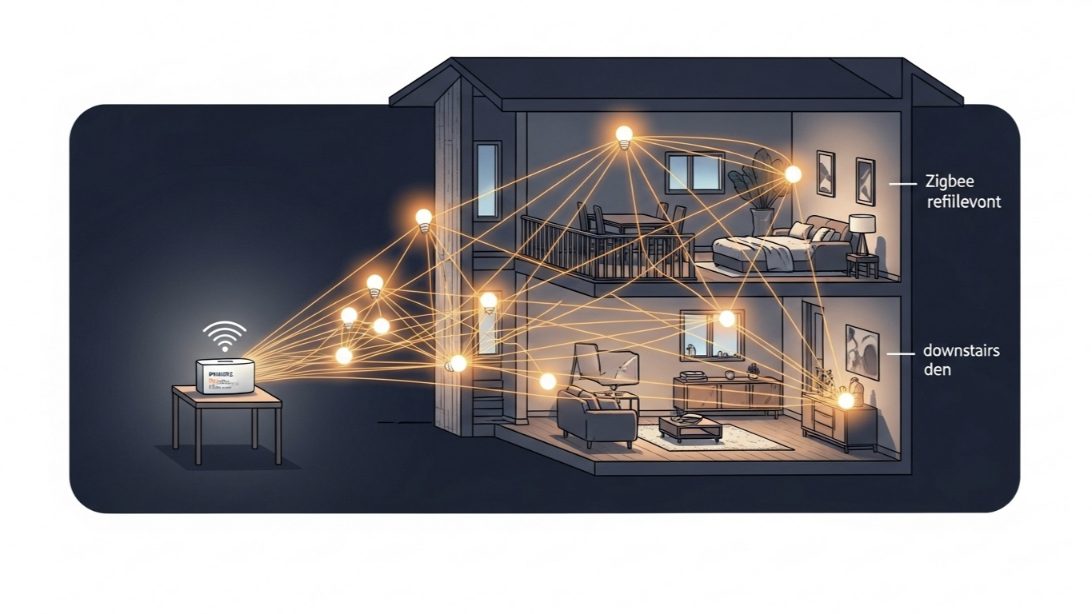
A client, Sarah, called me because all four of the Hue bulbs in her recently finished basement den were showing as “unreachable.” The lights on the main floor were working perfectly. She had already checked the power switches and rebooted her router.
The Investigation: Her router and Hue Bridge were located on the main floor, in an office directly above the den. On paper, the distance wasn’t extreme. However, during the renovation, a new metal HVAC duct had been installed in the ceiling right between the office and the den. Metal is a notorious blocker of wireless signals, including Zigbee.
The “Aha!” Moment: The Zigbee signal from the Hue Bridge was being severely weakened by the new ductwork, preventing it from reliably reaching the basement bulbs.
The Solution: The fix was simple and didn’t require moving the Bridge.
- We took a Hue smart plug (which also acts as a Zigbee repeater).
- We plugged it into an outlet at the top of the basement stairs—a location that had a clear “line of sight” to both the Bridge upstairs and the den downstairs.
The Result: The smart plug acted as a bridge for the signal, creating a strong link around the metal obstruction. Within minutes, all four “unreachable” bulbs in the den came back online and have been stable ever since. This demonstrates that the problem isn’t always distance, but what’s IN that distance. Creating a “chain” of Hue devices is key to a robust network.
Level 3 Troubleshooting: The Bulb Itself
If you’ve exhausted all other options, the issue might be with the specific bulb. This is the least likely scenario, but it’s important to rule it out.
- The “Bring It Closer” Test: Unscrew the unreachable bulb and screw it into a lamp right next to your Hue Bridge. If it becomes reachable here, you know for certain the problem is a range/interference issue at its original location, not a faulty bulb.
- Change the Zigbee Channel: If you live in a dense area, your home Wi-Fi might be interfering with the Hue’s Zigbee network. In the Hue app, go to Settings > Hue Bridges > tap the ‘i’ icon > Zigbee Channel. Try changing the channel. The app will take a few minutes to reconfigure your network.
- Delete and Re-add the Bulb: As a last resort, you can reset the bulb. In the Hue app, go to Settings > Lights. Tap on the unreachable bulb and delete it. Then, tap the ‘+’ button to add a new light. Enter the bulb’s 6-digit serial number (printed on the bulb itself) to force the Bridge to find it.
My Final Verdict: Think Like a Network Engineer
The “Unreachable” error is almost always a networking problem, not a hardware problem. By thinking methodically about the chain of communication—from the physical power switch to the Zigbee signal’s path through your home—you can diagnose the issue like a professional.
Always start with the simplest solution: the light switch. From there, check your network’s physical connections and consider the environment. By understanding that Hue relies on a mesh network of its own, you can strategically place devices to ensure every corner of your home is covered in a reliable, responsive smart light.